Breadcrumb: Aide › Editing during a session
Activate a planned target in session
Move a planned target into active practice during a session, when your clinic allows it, and record data on it right away.
Your BCBA can put targets on the plan as Planned, ready for later. If your clinic allows it, you can activate a planned target during the session when the learner is ready for it, without waiting for your BCBA. You write one line on why, and the target is ready for data collection at once.
Before you start
- Your clinic grants this permission: the org owner turns on Activate planned targets during sessions for you. Without it, planned targets and their Activate buttons are not listed. If you have neither this permission nor the one to add targets, the Add or activate target button in the web app and the Add / Activate Target menu item in the mobile app are missing too.
- You must be the aide assigned to the session, and the session must be In Progress. In the web app you can also activate a target on a Submitted session while your clinic lets aides correct submitted sessions.
- Only a Planned target can be activated. Goals the parents practice at home are not listed, and neither are goals your BCBA put on hold.
- The mobile app hides the menu item while you are offline.
Activate a target during a session
Web
Open the session in progress, select Collect Data, then Target. The targets you already ticked are kept.
- Select Add or activate target at the bottom of the window.
- Planned targets show under their goal, each with Activate. A goal with none shows No planned targets yet.
- Select Activate on the target. The window changes to Activate target and names the target.
- In Why?, write one line on why the learner is ready. The note is required.
- Select Activate, or Cancel to go back to the list.
The message Target activated. It is ready for data collection. appears. The target list opens again with the target ticked. Select Continue or Quick entry to add it to the session and record data.
Mobile
Activate the target from the data collection screen.
The target opens on the Targets tab as soon as it is activated, already part of the session.
- Tap the ⋮ menu at the top right, then Add / Activate Target.
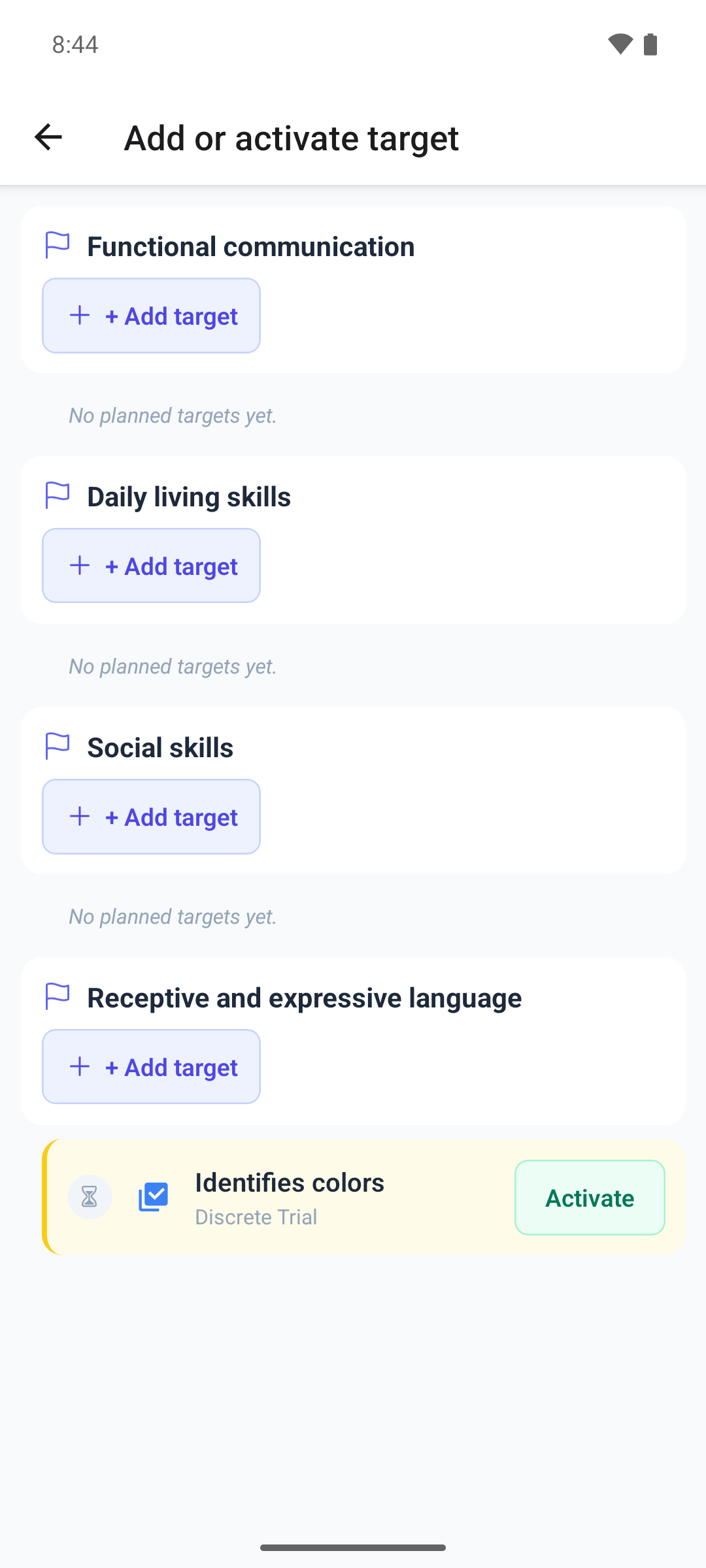
- Add or activate target lists the session's goals with their planned targets. A goal with none shows No planned targets yet.
- Tap Activate on the target.
- Activate this target? shows the goal and the target. In Why?, write one line on why the learner is ready.
- Tap Activate. Without a note, the app shows Add a one-line note before saving.
If activation fails
- This target is no longer in Planned state means your BCBA changed the target in the meantime. The web app reloads the list. In the mobile app, go back and open the list again.
- You don't have permission to do this means your clinic turned the permission off.
- This goal is on hold. Ask the BCBA to resume it. means your BCBA paused the goal. Its targets cannot be activated until the BCBA resumes it.
Activate a target from the plan page
In the web app you can also activate a target outside a session, from the learner's plan.
- Open the learner and select Go to Active Plan.
- Open Goals and select Activate on a planned target.
- Write your note in Why? and select Activate.
The plan reloads with the target highlighted. No session changes. The button shows only while the plan is active.
What happens next
- The target is Active. Your note is saved in its status history, so your BCBA sees who activated it and why. Your BCBA is not notified.
- Its goal becomes Active if it was Planned, or Active again if it was Mastered.
- In the mobile app the target is added to the session straight away. In the web app it is added when you select Continue or Quick entry.
- Record data on it like on any other target: see Collect data during a session.