Breadcrumb: Aide › Behaviors and rewards
Log a reward delivery
Record each reinforcer you give during a session, how many, and optionally the target it followed, within the limits your BCBA set.
Each time you give the learner a reward from their treatment plan, such as a sticker, a snack or a few minutes of a favorite game, you log it. Each delivery records the reward, the quantity, optionally the target it followed, and a note. Your BCBA can set how many times a reward may be given per session or per hour. ABACare warns you as you get close to a limit, and blocks the reward at the limit if your BCBA made it strict.
Before you start
- The session must be In Progress, and you must be its assigned aide. In the web app you can also log rewards on a submitted session if your clinic lets aides correct submitted sessions.
- Only active rewards on the plan are listed. If your clinic allows it, you can add a reward in session.
- BCBAs and org owners log rewards in the web app, on sessions that are In Progress or Submitted.
Log a reward
Web
Open the session in progress.
- Select + on the Session Rewards card. You can also select Collect Data, then Reward.
- Collect Reward Data opens with the first reward selected. Pick the reward under Reward. A reward close to its limit shows Near Limit, and one at its limit At Limit, with a warning under the list.
- Set Delivered at. It starts at the session's scheduled start and takes only a time of day: the date is always the session's date.
- Set the Qty, at least 1.
- Optionally, pick a Linked goal (optional) and a Linked target (optional). Picking a goal narrows the targets to that goal.
- Add Notes if you need to, then select Save Reward.
The message Reward delivery logged successfully appears and the Session Rewards card updates its totals. If the reward is blocked by a strict limit, an error message appears in the window instead.
Mobile
Log from the data collection screen, on the Rewards tab.
Once you log rewards, the tab shows Times Given, Total Items, Unique Rewards, a breakdown By Category and All Rewards given so far.
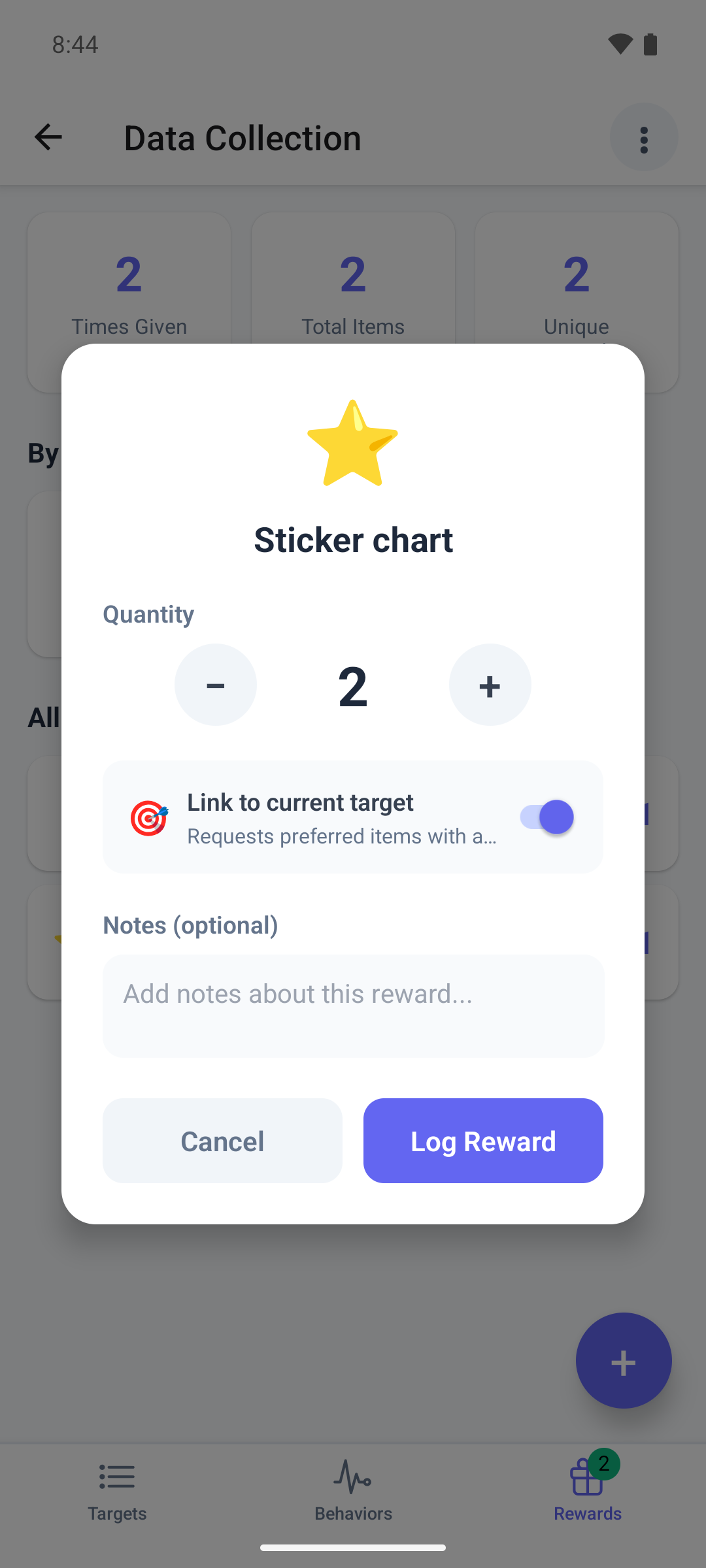
- Tap +. Select Reward lists the plan's rewards under High Preference, Medium Preference and Low Preference. A badge such as 3/10 shows how many have been given against the session limit.
- Tap the reward. A reward at a strict limit is greyed out.
- Set the Quantity. A timed reward shows its minutes instead.
- Link to current target links the reward to the target you were on. Switch it off if the reward did not follow that target.
- Add Notes (optional) and tap Log Reward once.
The reward appears in the tab. A message at the top warns Approaching limit or Limit reached when the reward nears or reaches a limit.
About limits
- Limits count deliveries, not items: giving 3 stickers at once counts as one delivery. The mobile badge and warnings count items until you reopen the data collection screen, so they can run ahead of the real count.
- A limit that is not strict never stops you. You see the warning and can still log the reward.
- In the web app you can still select a reward that shows At Limit. If the limit is strict, saving fails with an error.
Good to know in the mobile app
- The delivery time is the moment you tap Log Reward. In the web app you set it yourself.
- The window stays open until the reward is saved. Tap Log Reward only once: a second tap logs a second delivery.
- If the reward cannot be saved, it disappears from the list without a message. Check the list, and log it again when you are back online.
Delete a delivery
Deliveries cannot be deleted in the mobile app. In the web app, open Delivery Log on the Session Rewards card, select the bin next to the delivery and confirm in Delete Delivery.
What happens next
- The delivery is saved on the session straight away, and your BCBA sees it when reviewing the session.
- After you submit, the mobile app shows the session's rewards under Rewards Summary.