Breadcrumb: Aide › Data collection
Record frequency counts
Count each time a behavior happens on a frequency target, fix the count if needed and save it as a run, including a count of zero.
A frequency target counts how many times something happens during the session, for example how often the learner asks for an item without a prompt. You tap once each time it happens. ABACare numbers each occurrence and records the time. When you save, the count becomes one run. A count of zero is a valid result: it records that the behavior did not happen.
Before you start
- The session must be In Progress and the target in the Active phase. For a target in generalization or maintenance, see Collect data during a session.
- BCBAs record frequency counts in the web app only.
Count the occurrences
Web
Select Collect Data, then Target, tick the frequency target and select Continue.
- At the top, check the Context, the Mastery Criteria and the Direction. When your BCBA set the target to count different days, the criteria read in days, for example 5 occurrences for 3 days.
- Select Add Occurrence each time the behavior happens. Total Occurrences goes up by one.
- To remove the last occurrence, select Undo. It removes it straight away, without asking.
- Occurrence History lists every occurrence with its time. To correct a time, select the pencil, change it in Edit Occurrence and save.
- Select Save Data. You can save with no occurrences to record a zero.
Mobile
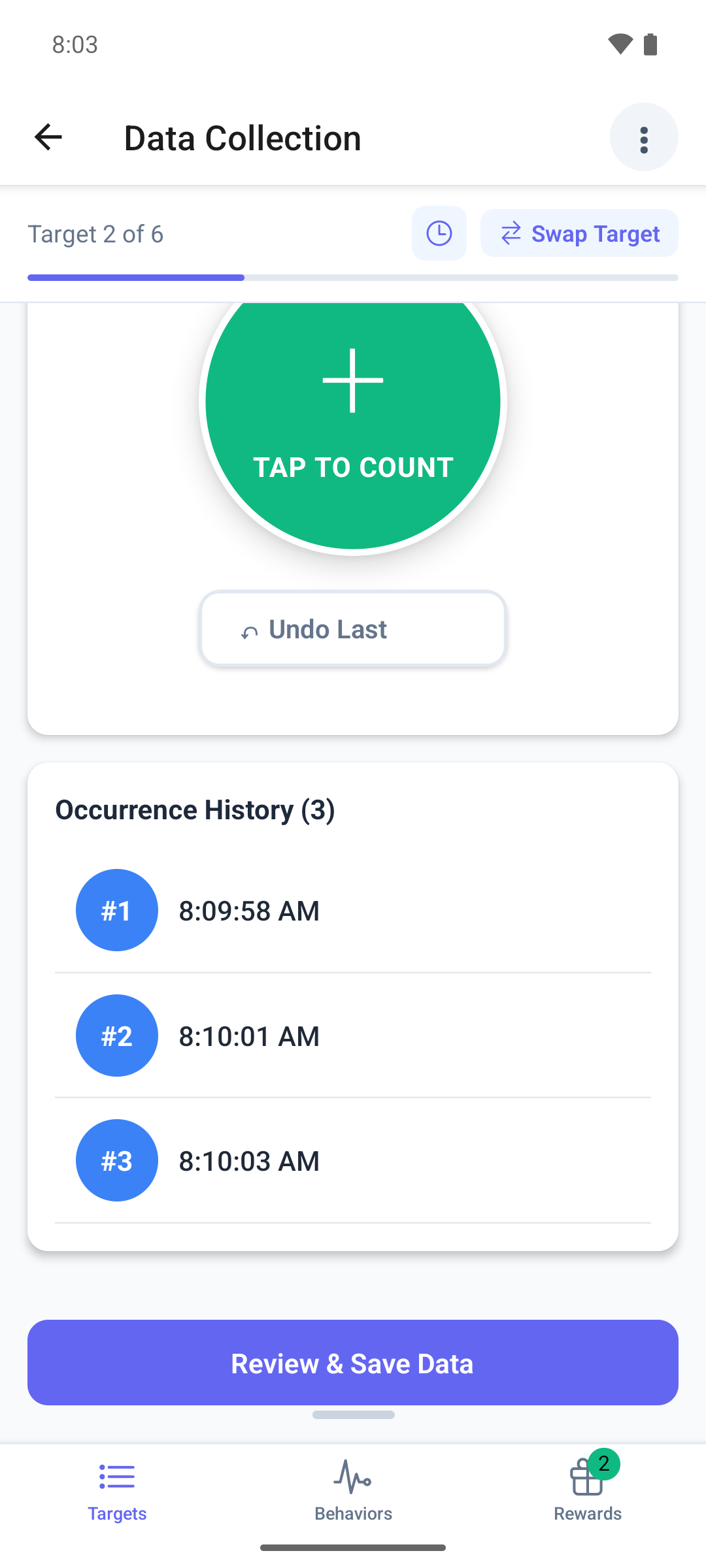
Swipe to the frequency target. If it already has a run, tap the + icon on its summary to start a new one.
The page shows Total Occurrences at 0 and a large round button.
- Tap Tap to Count each time the behavior happens. The phone vibrates on each tap.
- To remove the last occurrence, tap ↶ Undo Last and confirm with Remove.
- Occurrence History lists every occurrence with its time.
- Tap Review & Save Data. Review Frequency Data shows the total and the list. With no occurrences, it tells you the run will be saved with a count of 0.
- Tap Save Data.
The page switches to the summary of the saved run.
Good to know
- Only the web app can change the time of an occurrence. In the mobile app, undo it and tap again.
- In the web app, Cancel asks before it throws away your count. Closing the window with its X or Esc throws it away without asking.
- In the mobile app, an unsaved count stays on the phone until you save it, even if you leave the target. Submitting the session does not save it and does not warn you, and the count shows up again the next time you open the same target, even in a later session. Save or undo it before you move on.
- If a save fails, the count stays so you can try again.
What happens next
- The run appears with its total: in the target's summary on the phone and on the session's Data card on the web.
- To count again in the same session, add another run: see Collect data during a session.