Breadcrumb: Aide › Behaviors and rewards
Log an ABC behavior episode
Record one occurrence of a problem behavior during a session, with how long it lasted, its intensity, what came before it and what followed.
When a behavior from the learner's treatment plan happens during a session, you log it as an ABC episode: the antecedent (what happened before), the behavior itself with its duration and intensity, and the consequence (what happened after). Each episode is one record. In the mobile app you time the episode live; in the web app you enter the time and duration afterwards.
Before you start
- Your BCBA decides how each behavior is recorded. This guide covers behaviors recorded as ABC episodes. Behaviors marked Count or Duration get one summary per session instead: see Record a behavior count or duration summary.
- The session must be In Progress, and you must be its assigned aide. In the web app you can also log episodes on a submitted session if your clinic lets aides correct submitted sessions.
- Only active behaviors on the plan are listed. If your clinic allows it, you can add a behavior in session.
- BCBAs and org owners log episodes in the web app, on sessions that are In Progress or Submitted.
Log an episode
Web
Open the session in progress.
- Select + on the Behavior Records card. You can also select Collect Data, then Behavior.
- Collect Behavior Data opens with the first behavior selected. Pick the behavior under Behavior.
- Set the Start time. It starts at the session's scheduled start and takes only a time of day: the date is always the session's date.
- Enter the Duration as minutes and seconds (Format: mm:ss). It starts at 00:30 and must be more than zero.
- Set the Intensity on the slider, from 1 (low) to 5 (high).
- Under Antecedent and Consequence, select a quick pick or type your own text. A quick pick only fills in the text box, which you can still change.
- Add Notes if you need to, then select Save Behavior.
The message Behavior record created successfully appears and the episode is added to the Behavior Records card.
Mobile
Log from the data collection screen, on the Behaviors tab.
The tab appears when the plan has behaviors, or when your clinic lets you add one. Its badge counts the recordings you have open.
- Tap +. Select Behavior lists the plan's behaviors. Behaviors without a Count or Duration badge are ABC behaviors.
- Tap the behavior as it starts. A card appears under Active Behaviors with a running timer.
- Set the Intensity on the card, from Low to High. It starts at 3.
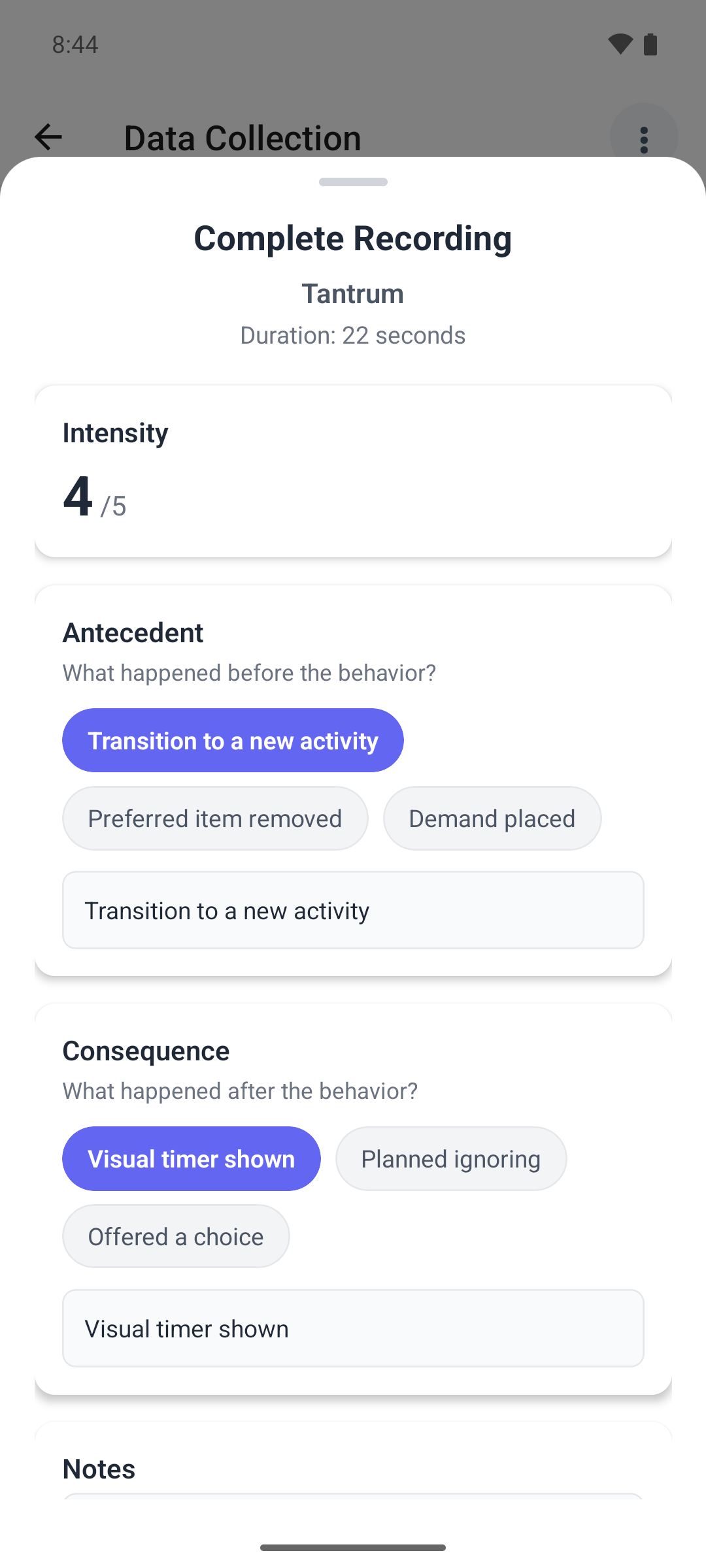
- When the behavior ends, tap Stop Recording. Complete Recording opens with the duration and intensity.
- Under Antecedent and Consequence, tap a quick pick or type your own in the box below.
- Add Notes if you need to, then tap Save.
The episode moves to Recorded Behaviors, with its intensity, antecedent and consequence.
Good to know in the mobile app
- You can time several episodes at once, each on its own card.
- Cancel in Complete Recording clears what you typed, then asks Cancel Recording?. Discard removes the episode. Keep Recording leaves a stopped card that can no longer be saved, so type your answers and tap Save instead.
- You cannot submit the session while an episode is still timing. Leaving the screen with one running asks you to confirm, and Leave throws the running episodes away.
- There is no offline mode. If saving fails, a message appears and the window stays open so you can try again.
Change or delete an episode
Saved episodes are read-only in the mobile app. In the web app, your episodes on the Behavior Records card show a pencil and a bin while you can still collect data on the session.
- To change an episode, select the pencil, correct it in Edit Behavior Record and select Save.
- To delete it, select the bin and confirm in Delete Behavior Record.
What happens next
- The episode is saved on the session straight away. Your BCBA sees it when reviewing the session.
- After you submit, the mobile app lists the session's episodes under Behavior Occurrences.