Breadcrumb: BCBA › Supervision
Work through a supervision checklist
Build the agenda of a supervision, choose which items your aides can see, and tick items off as you cover them, in the web app or the mobile app.
The checklist is the agenda of a supervision: the topics you want to cover with your aides. You add items once the supervision is booked, decide for each one whether the aides you supervise can see it, and tick items off as you cover them.
Before you start
- You can change the checklist while the supervision is Scheduled or In Progress. Once it is completed or cancelled, the checklist is read-only.
- Only the supervision's supervisor and org owners can change it. Another BCBA who opens the supervision in the web app sees the checklist as editable, but every change fails with an error.
- An item holds up to 500 characters.
Who sees each item
Each item has a visibility:
- Visible to supervisees (the eye icon, the default): the aides you supervise see the item and whether it is done, in the mobile app.
- Supervisor only (the lock icon): only you and your clinic's org owners see it. Aides never see it, and it is left out of every count they see. Other BCBAs do not see it either.
Work on the checklist
Web
Open the supervision from Supervision in the menu. The Checklist card shows Lock = supervisor only · Eye = supervisees see and the items, or No checklist items.
- Select Add Item. Type the item in Describe the agenda item….
- Select the eye icon if the item should be for you only. It turns into a lock.
- Select Add, or press Enter. Cancel closes the row without adding anything.
- To change an item's text, edit it in place. It saves when you leave the field or press Enter.
- To change who sees an item, select its eye or lock icon. It saves at once.
- Tick an item's box when you have covered it.
- To remove an item, select its trash icon. It is deleted at once, without a question.
In the web app a ticked item is locked: you cannot untick it, change it or delete it. Use the mobile app if you ticked one by mistake.
Mobile
Open the supervision from the Supervisions list, as described in Start, complete or cancel a supervision, and tap the Checklist tab. Each item shows its eye or lock icon, and done items are struck through.
An empty checklist shows No checklist items yet.
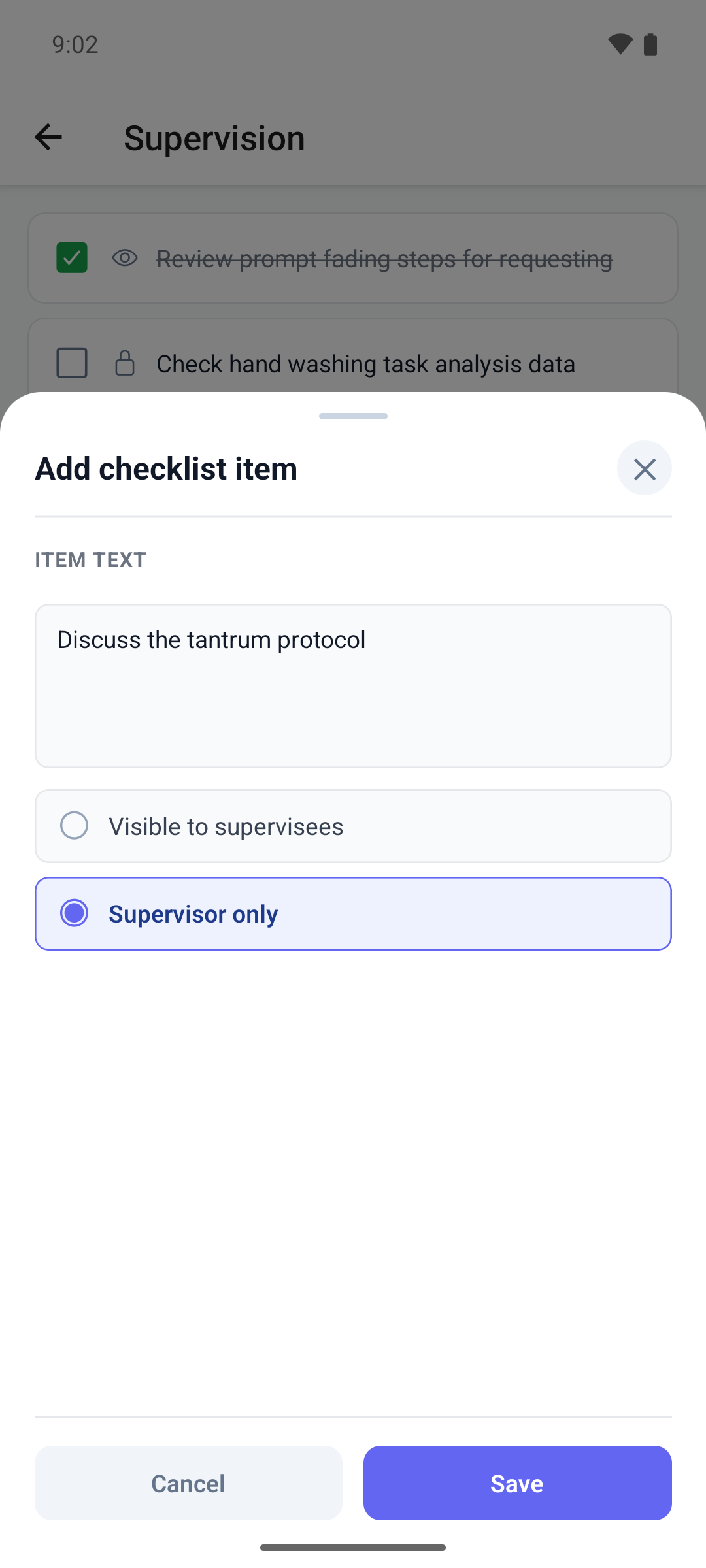
- Tap Add item. Add checklist item opens.
- Type the Item text, and choose Visible to supervisees or Supervisor only.
- Tap Save, or Cancel to close without adding.
- Tap an item's box to mark it done. Tap it again to mark it not done.
- Tap an item to open Edit checklist item. Change the text or the visibility and tap Save.
- To remove it, tap Delete in the same window and confirm Delete this item? with Delete, or tap Keep.
In the mobile app you can also change or delete a done item.
If a change cannot be saved, an error message appears. In the web app the unsaved text stays in the row until you reload the page, so check it before you move on.
What happens next
- Changes save as you make them. Nobody is notified, and your aides see shared items the next time they open the supervision in the mobile app.
- Once the supervision has at least one item, it leaves Compliance in your Needs Attention list.
- You can complete the supervision with items still open. They stay open, and the checklist can no longer change.