Breadcrumb: Aide › Behaviors and rewards
Record a behavior count or duration summary
Keep one tally or total time per behavior for the session, with how long you observed, instead of logging each episode.
Some behaviors happen too often, or last too long, to log one episode at a time. For those, your BCBA sets the behavior to Count or Duration, and you record one summary for the whole session: how many times it happened, or how long it lasted, and how long you were observing. ABACare works out the rate per hour or the percentage of the observation time from these numbers. In the mobile app you tally or time the behavior live; in the web app you type the totals.
Before you start
- Your BCBA sets how each behavior is recorded. Count and Duration behaviors carry that badge in the mobile app and that tag in the web app. For ABC behaviors, see Log an ABC behavior episode.
- The session must be In Progress, and you must be its assigned aide. In the web app you can also record on a submitted session if your clinic lets aides correct submitted sessions.
- BCBAs and org owners record summaries in the web app, on sessions that are In Progress or Submitted.
Record the summary
Web
Open the session in progress.
- Select + on the Behavior Records card, or Collect Data, then Behavior.
- In Collect Behavior Data, pick a count or duration behavior under Behavior. The ABC fields are replaced by the summary fields.
- For a count behavior, enter the Occurrences. For a duration behavior, enter the Behavior time in minutes and seconds.
- Check the Observation time in minutes. It starts at the time since the session started. If the behavior already has a summary in this session, the form shows its numbers.
- Add Notes if you need to, then select Save Behavior.
The summary appears on the Behavior Records card with its tag and the totals: occurrences, observed time and rate per hour, or behavior time, observed time and percentage of observation.
Mobile
Record from the data collection screen, on the Behaviors tab.
A card tracks the behavior while you work. The observation time runs while the card is open.
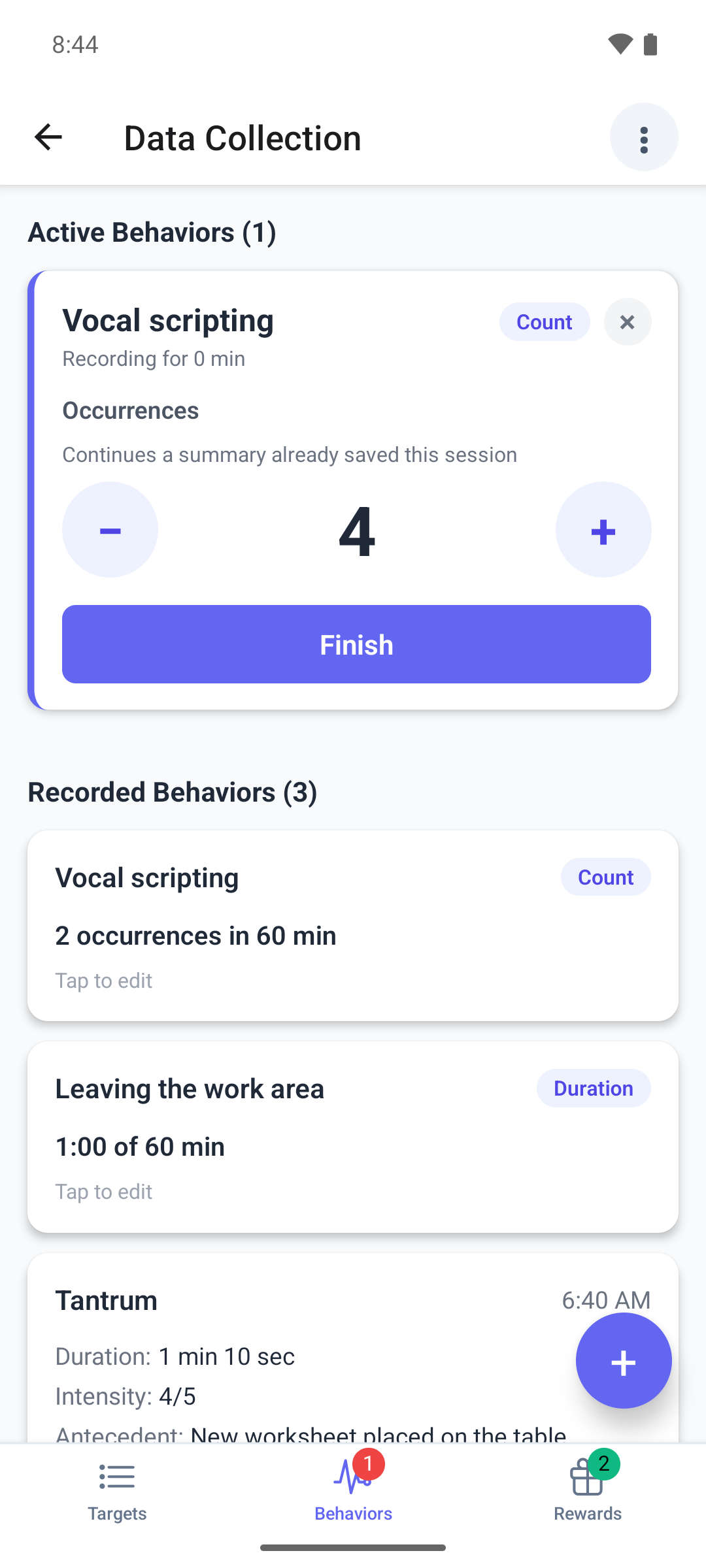
- Tap +, then tap a behavior with a Count or Duration badge. A card opens under Active Behaviors.
- For a count, tap + each time the behavior happens, and − to undo a tap. For a duration, tap Start when the behavior starts and Stop when it ends, as many times as it happens. The times add up.
- When you finish observing, tap Finish. Record Count or Record Duration opens with your tally or total time and the Observation time.
- Correct any number if you need to and add Notes.
- Tap Save.
The card closes and the summary appears under Recorded Behaviors, for example 14 occurrences in 45 min.
Good to know in the mobile app
- Each behavior has one summary per session. If you open a card for a behavior that already has one, the card continues from it and says Continues a summary already saved this session.
- One card per behavior can be open at a time. Tapping the behavior again shows Already recording.
- Cancel in the summary window asks Cancel Recording?. Discard throws the tally away. Keep Recording leaves the card waiting with Resume to keep counting and Confirm to open the summary again.
- You cannot submit the session while a card is open or waiting for confirmation. Leaving the screen asks you to confirm, and Leave throws the open cards away.
- The behavior time cannot be longer than the observation time, and the observation time must be between 1 and 1,440 minutes.
- If your BCBA changes the behavior's mode or removes it from the plan while your card is open, the card shows a warning and can no longer be saved. Discard it, or tap Start over to continue under the new mode.
Change a summary
Web
Your summaries on the Behavior Records card show a pencil and a bin while you can still collect data on the session.
- To change a summary, select the pencil, correct the numbers and select Save. Adding a summary again for the same behavior also updates it.
- To delete it, select the bin and confirm in Delete Behavior Record.
Mobile
Tap a row marked Tap to edit under Recorded Behaviors.
- Correct the numbers in the summary window.
- Tap Save, or Cancel to leave it as it was.
You cannot edit a row while a card for the same behavior is open. The mobile app cannot delete a summary.
What happens next
- The summary is saved on the session straight away and replaces any earlier summary of the same behavior.
- After you submit, the mobile app shows the summary under Behavior Occurrences with its badge.