Breadcrumb: Aide › Running sessions
Start a session and select targets
Open a scheduled session, choose which targets from the treatment plan you will run, and start it so you can record data.
Starting a session moves it from Scheduled to In Progress and opens data collection. You choose which targets from the learner's treatment plan you will work on: only the targets you select accept data. In the mobile app you choose them before you start. In the web app you start first and choose targets each time you collect.
Before you start
- You can start only the sessions assigned to you. Anyone else who opens the session sees You are not the assigned aide for this session instead of the start button.
- You do not need to confirm attendance first, and ABACare does not check the time: you can start a session early or late.
- Targets your BCBA put On Hold are not offered, and neither are the targets of a goal on hold. If a target you expect is missing, ask your BCBA.
Start the session
Web
Open the session from My Sessions or from your dashboard.
- Select Begin Session. There is no confirmation step.
- The session moves to In Progress. Begin Session is replaced by Submit Session and Collect Data.
- Select Collect Data, then Target. Select Targets for Data Collection opens. The + on the Data card opens it directly.
- Tick the targets you want to run. Use the search box or Select All for long plans.
- Select Continue to record the targets one at a time, or Quick entry to record several on one screen.
ABACare adds the targets you picked to the session, then opens data collection. Next time you select Collect Data, you can pick more targets.
Mobile
Open the session from My Sessions, on the Today or Upcoming tab.
Session Overview shows the number of active goals and targets and how many are selected. Under Goals & Targets, each goal lists its targets with a checkbox.
- Check the ticks. ABACare ticks targets for you: the ones saved on the session, or else every target you can run today.
- Untick the targets you will not run, and tick any you want to add. A target marked Mandatory target is required by your BCBA and cannot be unticked.
- Tap Start Session.
- Confirm with Start.
Data collection opens for the targets you selected.
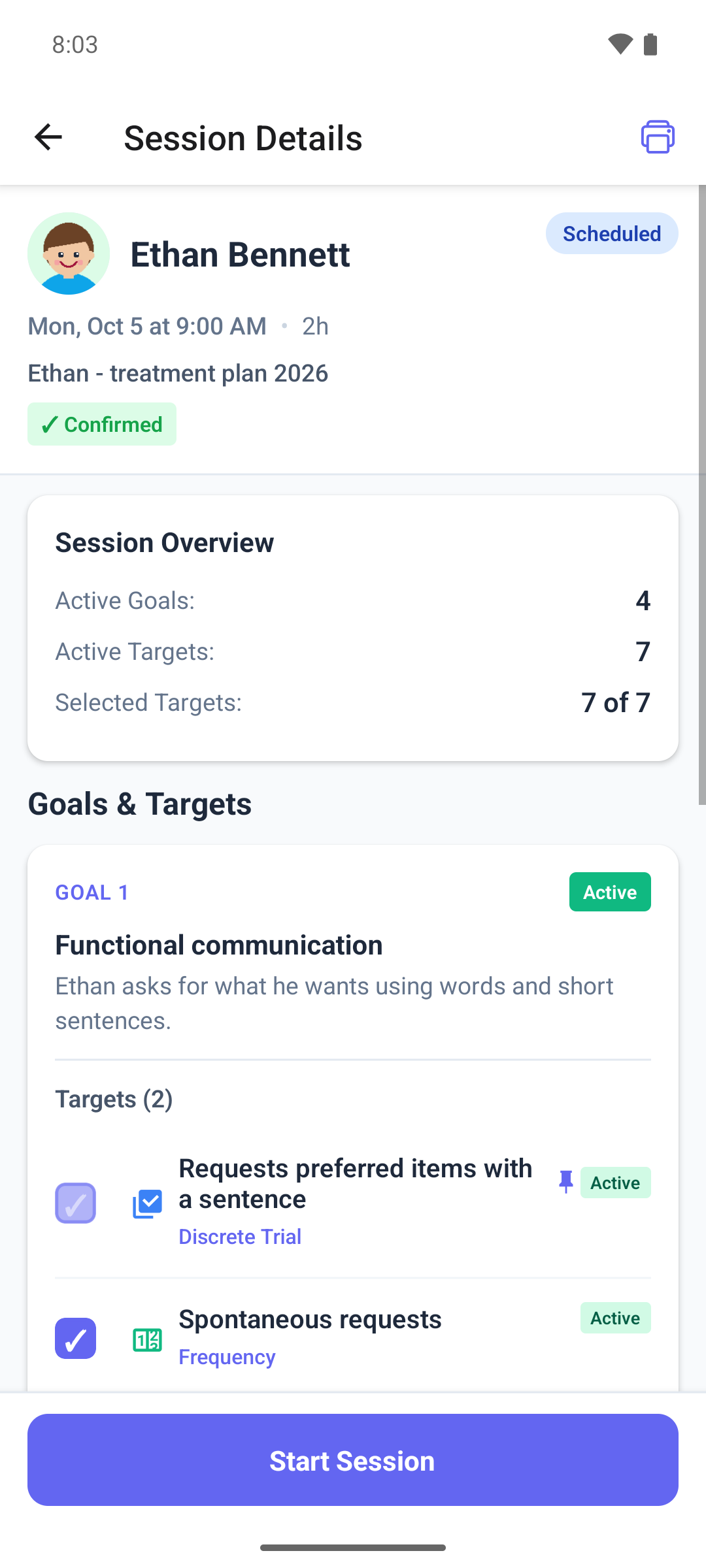
What the mobile target list shows
- A generalization target shows the setting to run it in next, for example Run in: followed by the setting.
- A maintenance target appears only when a check is due. It shows when it was last checked, or Never probed. The web list shows every maintenance target.
- If you tap Start Session with nothing ticked, the app shows No Targets Selected. Tick at least one target.
- If you tap Cancel instead of Start, the session does not start, but your ticks are saved.
Your clinic can also let you add a new target or activate a planned one during the session. If it does, Add or activate target appears in the web target list, and Add / Activate Target in the mobile session menu.
What happens next
- The session is In Progress. ABACare records who started it and when.
- Record data for each target as you work: see Collect data during a session.
- To go back to data collection in the mobile app, open the session and tap Data Collection.
- When you finish, submit the session.