Breadcrumb: Aide › Running sessions
Review a past session
Open a submitted or completed session to see the data, notes, behaviors, rewards and feedback recorded in it.
Once a session is submitted or completed, you can open it to see what was recorded: the runs for each target, target notes, photos and videos, your session notes, behaviors and rewards. It is a good way to check your work, prepare for the next session with the same learner, or read feedback your BCBA left on a photo or video.
Before you start
- As an aide, you can open the sessions of the learners assigned to you. You see only your own session notes, but every target note, including your BCBA's.
- BCBAs and org owners see the same session in the web app with more: the status history and the session summary. They can still change a submitted session there. In the mobile app the session is read-only for everyone.
Open the session
Web
Open My Sessions and select the session. You can also open it from the Sessions tab of the learner's page, or from a notification.
- At the top, check the learner, the scheduled and actual times, and when the session was submitted, completed and confirmed.
- The Data card lists each target with its runs, photos and videos, and target notes.
- Behavior Records and Session Rewards show only when the session has behaviors or rewards.
- Session Notes lists your own notes.
On a completed session, the page has no add, edit or delete buttons.
Mobile
Open My Sessions and tap the Past tab.
A submitted session shows Pending Approval. Yesterday's sessions are under Past; today's are under Today.
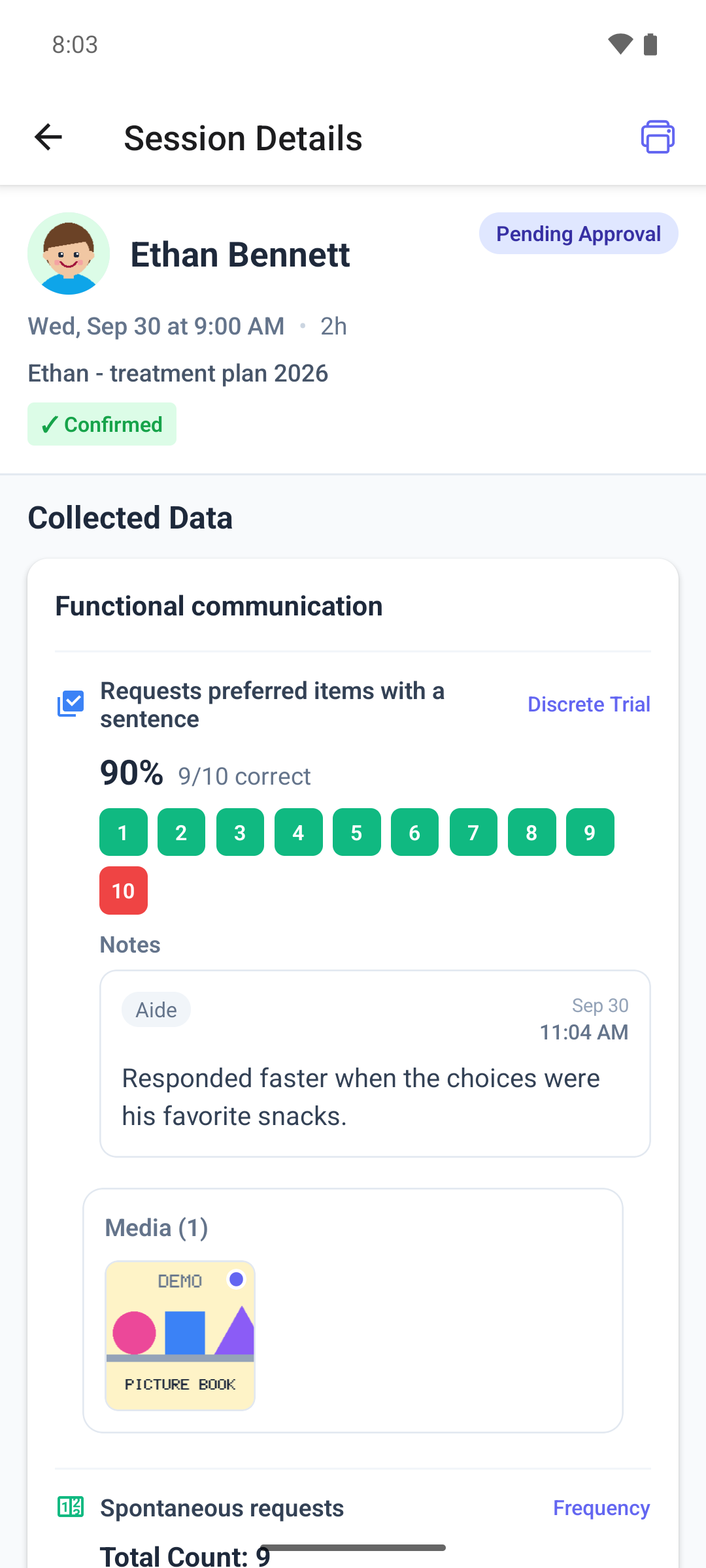
- Tap the session. The header shows the learner, the status, the time and the treatment plan.
- Scroll through the sections: Collected Data, Session Notes, Session Summary, Behavior Occurrences and Rewards Summary.
- Under Collected Data, each target shows its runs, its target notes and its photos and videos. A target with several runs also shows the Session score.
- Session Summary shows the summary ABACare wrote, marked AI-generated, or No summary available yet.
The web app does not show aides the session summary. To read it, open the session in the mobile app.
When your BCBA comments on a photo or video in your session, you get a notification that opens the session at that media: see Review feedback on session media.
What happens next
- Opening a session changes nothing in it, except that any feedback on its photos and videos is marked as read.
- The mobile app keeps a session you opened for a few minutes. If your BCBA changed it since, go back and open it again later.
- To work with the same targets on paper, print a worksheet from the session.