Breadcrumb: Aide › Supervision
View my supervisions and feedback
Open the supervisions where your BCBA observes you and read the checklist and observations they shared with you, in the mobile app.
When your BCBA supervises you, they plan the supervision, work through a checklist and write observations. Some of these they keep for themselves; the rest they share with you. You read what they shared in the mobile app. You cannot change anything, and there is no supervision page for aides in the web app.
Open your supervisions
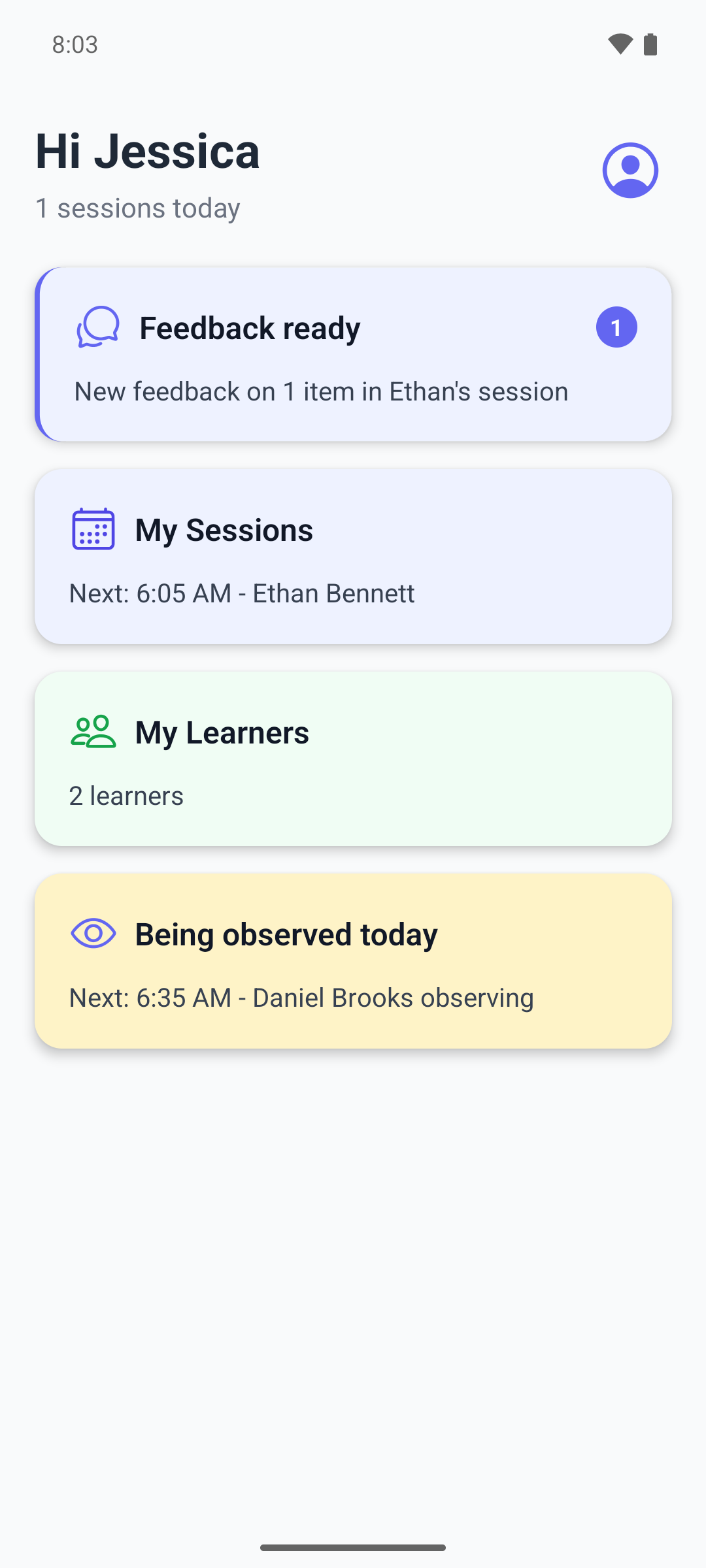
On a day with a supervision that is scheduled or in progress, the home screen shows Being observed today, with the time and the name of the BCBA observing you.
- Tap the Being observed today card. Supervisions opens with every supervision you are part of.
- Upcoming lists scheduled and in-progress supervisions, earliest first. Past lists completed and cancelled ones, latest first.
- Filter with All, Scheduled, In progress, Completed or Cancelled, or search by title. All leaves out cancelled supervisions.
- Pull down to refresh the list.
If no supervision matches your filters, the list stays blank.
Read a supervision
Tap a supervision. It has three tabs at the bottom.
- Overview shows the title, the status and type, the supervisor, the supervisees and the description. A completed or cancelled supervision shows a banner saying no further changes are possible.
- When the BCBA observed one of your therapy sessions, Linked therapy sessions lists it. Tap it to open the session. A deleted session shows as Session removed.
- Checklist shows the items shared with you, each marked done or not done, or No checklist items yet.
- Observations shows each shared observation with its date and time, or No observations yet. The tab shows how many there are.
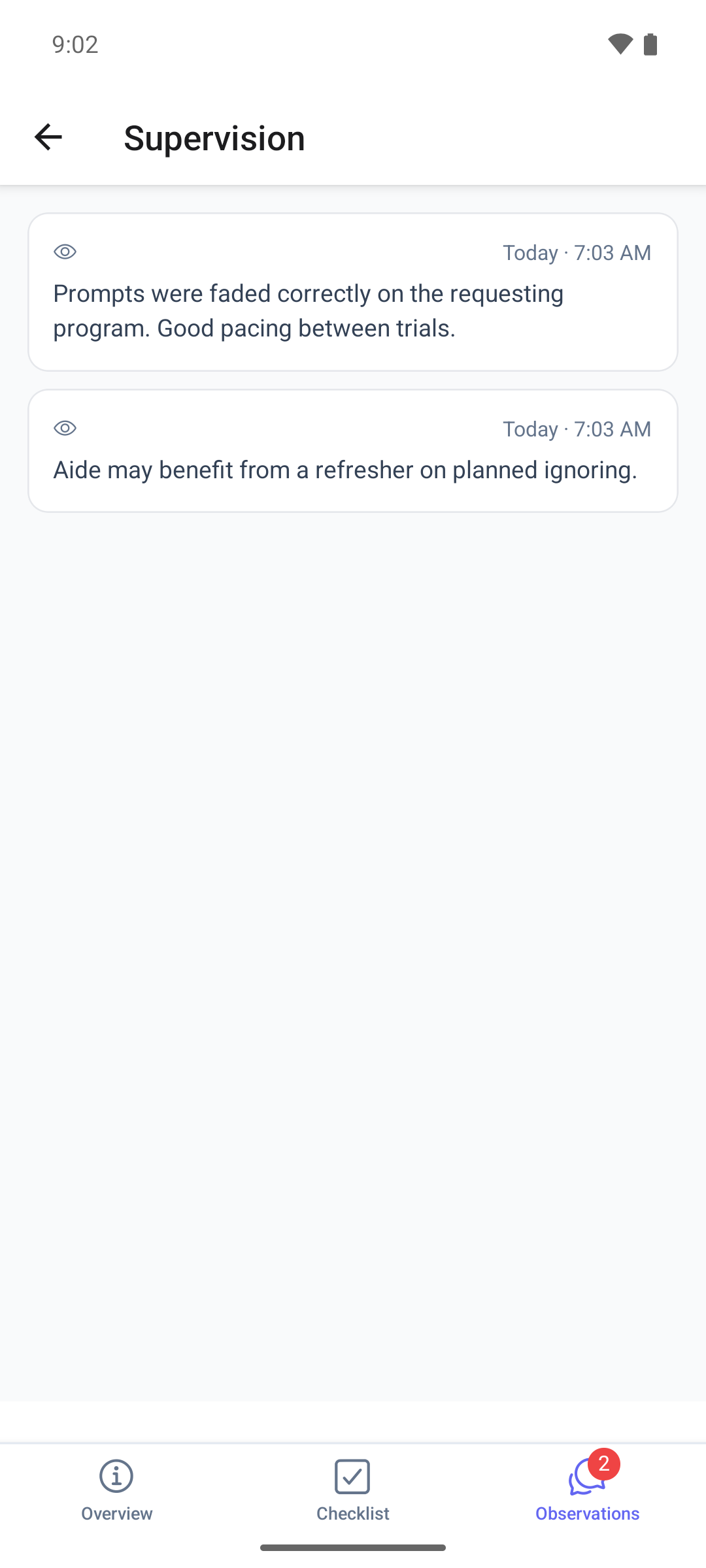
Long checklist items and observations are cut after a few lines and cannot be opened in full. If you need the whole text, ask your BCBA.
What happens next
- Reading a supervision changes nothing in it.
- An open supervision does not refresh itself. During a supervision in progress, go back and open it again after a few minutes to see new observations.
- If a supervision does not load, Overview and Checklist show Could not load supervision. The list and Observations look empty instead.