Breadcrumb: Aide › Running sessions
View my sessions and confirm attendance
See your sessions for today, this week and later, and confirm in the web app that you will attend a scheduled session.
Your sessions are listed in both apps: today's, the coming days' and the ones you already ran. In the web app you can also confirm that you will attend a scheduled session, so your BCBA and your clinic know you have seen it. Confirming is only a notice. You can start a session whether you confirmed it or not.
See your sessions
Web
Start from your dashboard, which opens when you sign in.
- Look at the cards at the top. Today's Sessions shows how many sessions you have today and how many are scheduled or in progress. This Week shows the next seven days with a dot on each day that has sessions. Upcoming Sessions lists the next few sessions after today with their start times.
- Select the body of a card to open My Sessions filtered to that period, or select View All to see all of them. You can also open My Sessions from the top menu.
- Switch between All, Today, This Week and Upcoming. Each button shows how many sessions it holds.
Each session card shows the learner, the date, the time and duration, the treatment plan and the status. A green check means you confirmed the session; an orange clock means you have not yet. Select a card to open the session.
Mobile
Start from the home screen of the mobile app.
The My Sessions card shows your next session today, or No sessions today -- enjoy your day! when there is none.
- Tap the My Sessions card.
- Switch between the Today, Upcoming and Past tabs. Today and Upcoming show how many sessions they hold.
- Pull down on the list to refresh it.
- Tap a session to open it.
A session you confirmed on the web shows ✓ Confirmed.
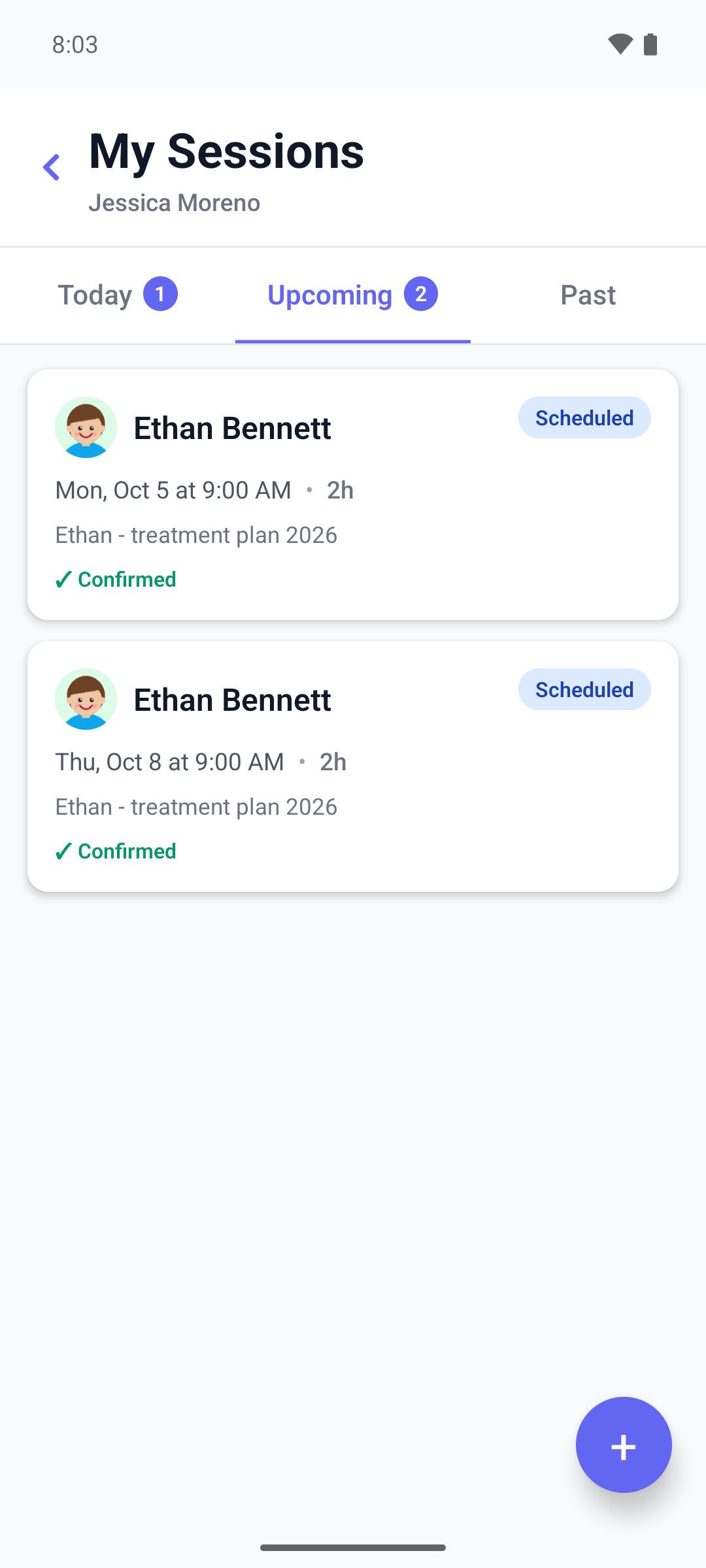
What each list shows
- Upcoming in the mobile app shows up to five sessions over the next seven days. In the web app it shows every scheduled session from tomorrow on.
- Past in the mobile app starts with the most recent session and loads more as you scroll. A session that ended earlier today is still under Today.
- Cancelled and no-show sessions stay in the lists, so the counts can include them.
- All in the web app includes past sessions of every status.
Confirm attendance
Confirming is available only in the web app, for a scheduled session assigned to you that you have not confirmed yet.
- Open My Sessions and find the session. Upcoming lists the sessions you can confirm.
- Select Confirm Attendance on its card. You can also open the session and select Confirm next to Begin Session.
The message Session confirmed successfully appears and the button goes away. The session stays in Upcoming.
What happens next
- Your clinic can see that you confirmed the session. A confirmation cannot be undone, and it stays if the session is later moved to another time.
- When it is time, start the session.