Breadcrumb: Aide › Data collection
Collect data during a session
Move between the targets of a session in progress, record a run for each, add extra runs and know when every target is done.
Once a session is in progress, you record data target by target. Each time you save data for a target, ABACare stores it as one run, and a target can have several runs in the same session. Every target type has its own recording screen, described in its own guide. This page covers moving between targets, adding runs and finishing. In the mobile app you swipe through the targets you selected. In the web app you tick targets and ABACare opens them one after the other.
Before you start
- The session must be In Progress, and you must be its assigned aide. In the web app you can also add data to a submitted session when your clinic allows it: see Correct a submitted session.
- In the mobile app you see only the targets you selected when you started the session, plus any you add during it. The web app lists every target of the plan that you can record now.
- BCBAs record data in the web app only, on sessions that are In Progress or Submitted. Org owners see Collect Data too, but saving a target's data shows an error.
Record data target by target
Web
Open the session in progress.
- Select Collect Data. Collect session data opens with a card each for Target, Behavior and Reward.
- Select Target. The + on the Data card skips this step.
- In Select Targets for Data Collection, tick the targets you want to record. Each shows how many runs it already has; ticking a target that has runs adds a new one.
- Select Continue. The first target opens with the recording screen for its type.
- Record the data and select Save Data. It stays unavailable until you record something.
ABACare confirms the save and opens the next target you ticked. After the last one, the window closes. To record several targets on one screen instead, select Quick entry: see Quick-enter data for several targets.
Mobile
Data collection opens when you start the session. To come back to it later, open the session and tap Data Collection.
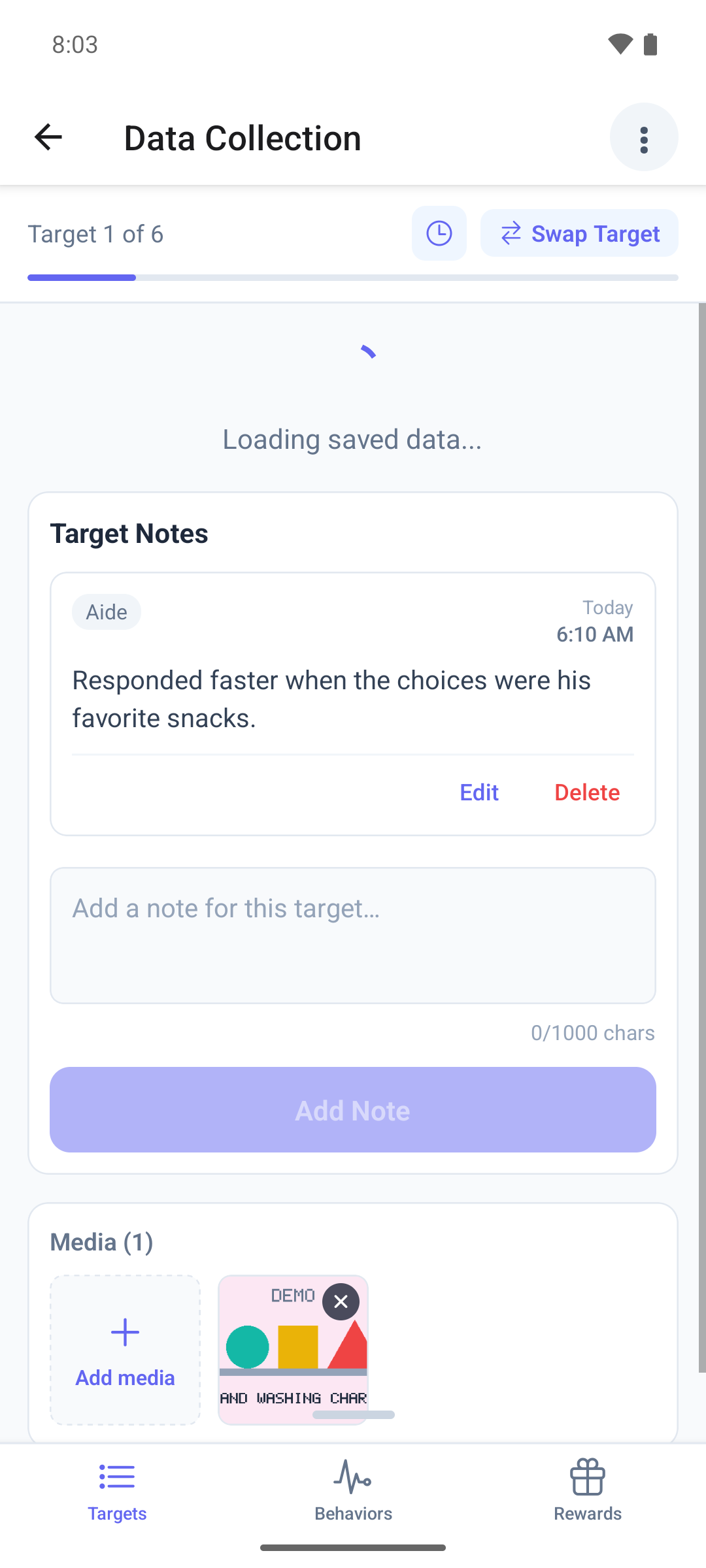
The Targets tab shows one page per target, with a counter such as Target 1 of 6 and a progress bar at the top.
- Swipe left or right to move between targets.
- On a target with no data yet, record the data and save it from the review window.
- After a save, the page shows a summary of that run. The app does not move on by itself: swipe to the next target.
- To jump to a target, tap Swap Target. All Targets lists the targets by goal, with their runs and a mark on the ones already done.
The Behaviors and Rewards tabs sit next to Targets. They are hidden when the plan has no behaviors or rewards and your clinic does not let you add them.
Add another run to a target
Record a target again when you run it a second time, for example after a break.
Web
Select Collect Data again, tick the target and select Continue. ABACare numbers the new run after the last one.
Mobile
Go to the target's page. It shows the summary of the target's last run.
Tap the + icon on the summary. A fresh recording screen opens: record and save as usual.
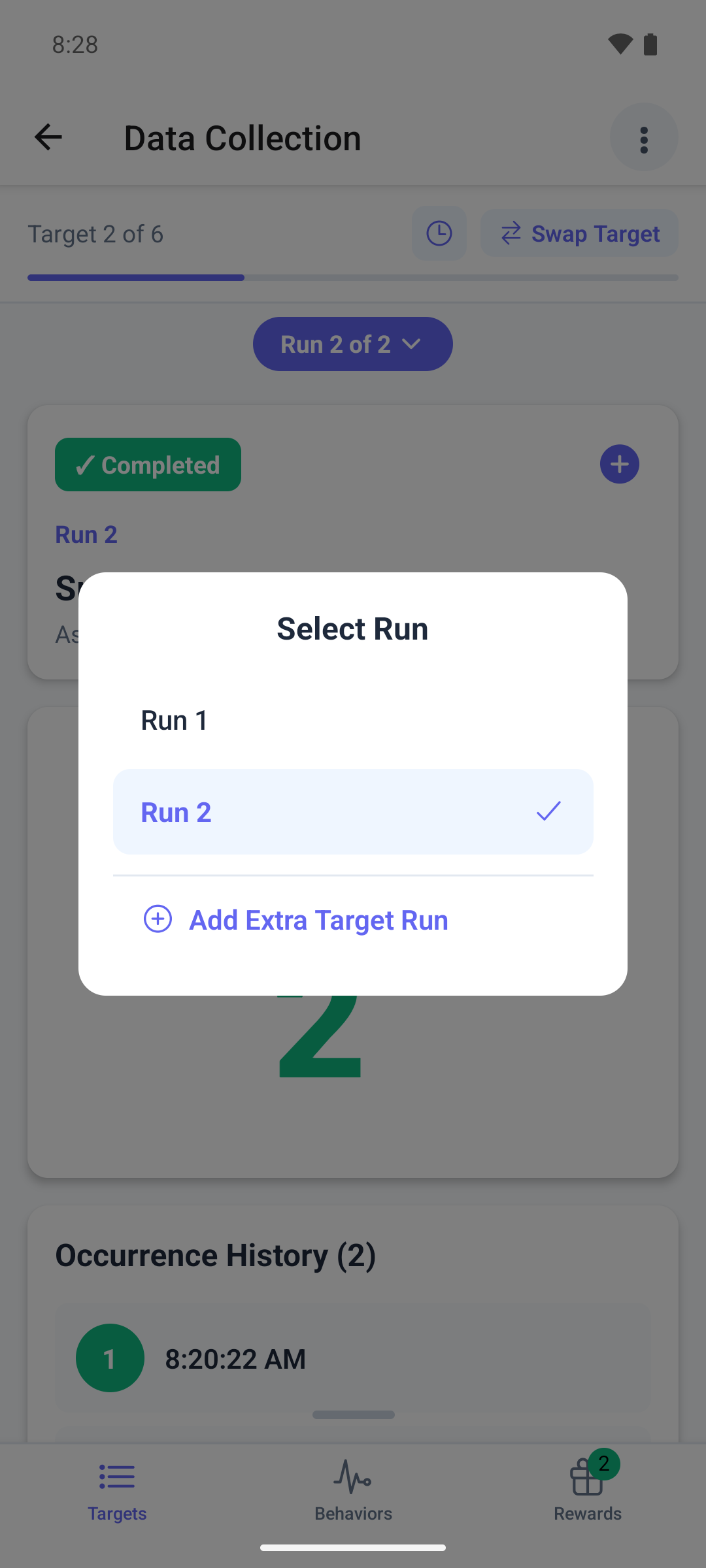
Once a target has two or more runs, a badge such as Run 2 of 2 appears. Tap it to open Select Run: look at an earlier run, go back to the run in progress, or tap Add Extra Target Run.
Targets in generalization or maintenance
A target your BCBA moved to generalization or maintenance opens a different screen. Which one depends on how your clinic records these phases:
- If your clinic uses the Simple mode, you record a single pass or fail. See Record a generalization or maintenance pass or fail.
- If your clinic uses the Granular mode, you record a full run that ABACare scores against the target's criteria. See Collect a granular generalization run and Collect a granular maintenance probe.
A session keeps the mode it had when it started, even if your clinic changes it later.
Unsaved data
- Nothing is saved until you save it, and nothing is kept for later when you are offline. If a save fails, the app says why and keeps what you recorded, so you can try again.
- In the web app, Cancel asks before it throws away what you recorded. Closing the window with its X or Esc throws it away without asking, and the other targets you ticked do not open.
- In the mobile app, leaving the screen with unsaved trials or behaviors asks you to confirm with Leave. Other unsaved counts and timers stay on the phone without a warning until you save them or start over.
What happens next
- When every target that needs data has at least one run, the mobile app shows Session Complete. Tap Submit Session, or Review to keep working. Generic targets do not count for this message. The web app shows no such message.
- Your runs appear on the session's Data card in the web app.
- When you finish, submit the session.