Breadcrumb: Parent › Practice at home
Set a daily practice reminder
Get a notification on your phone every day at a time you choose, reminding you to practice with your child.
A little practice every day helps your child most. The mobile app can remind you with a notification at the same time each day. The reminder lives on your phone only: it does not exist in the web app or on your other phones, and your clinic does not see it.
Before you start
- You need the ABACare mobile app, signed in with your parent account.
- ABACare must be allowed to send notifications. Your phone asks the first time you turn the reminder on.
Turn on the reminder
Start on the My Children screen.
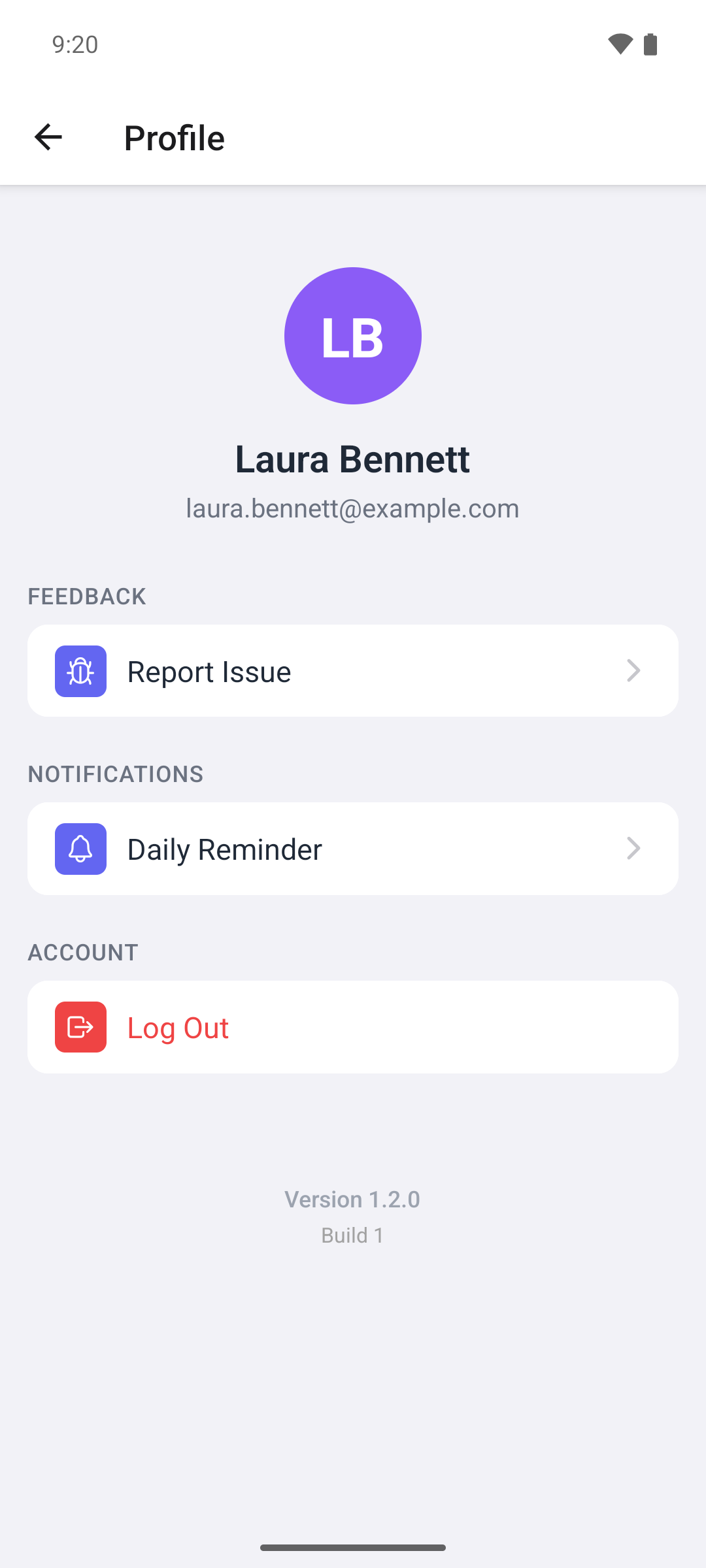
- Tap the profile icon at the top right. Profile opens.
- Under Notifications, tap Daily Reminder.
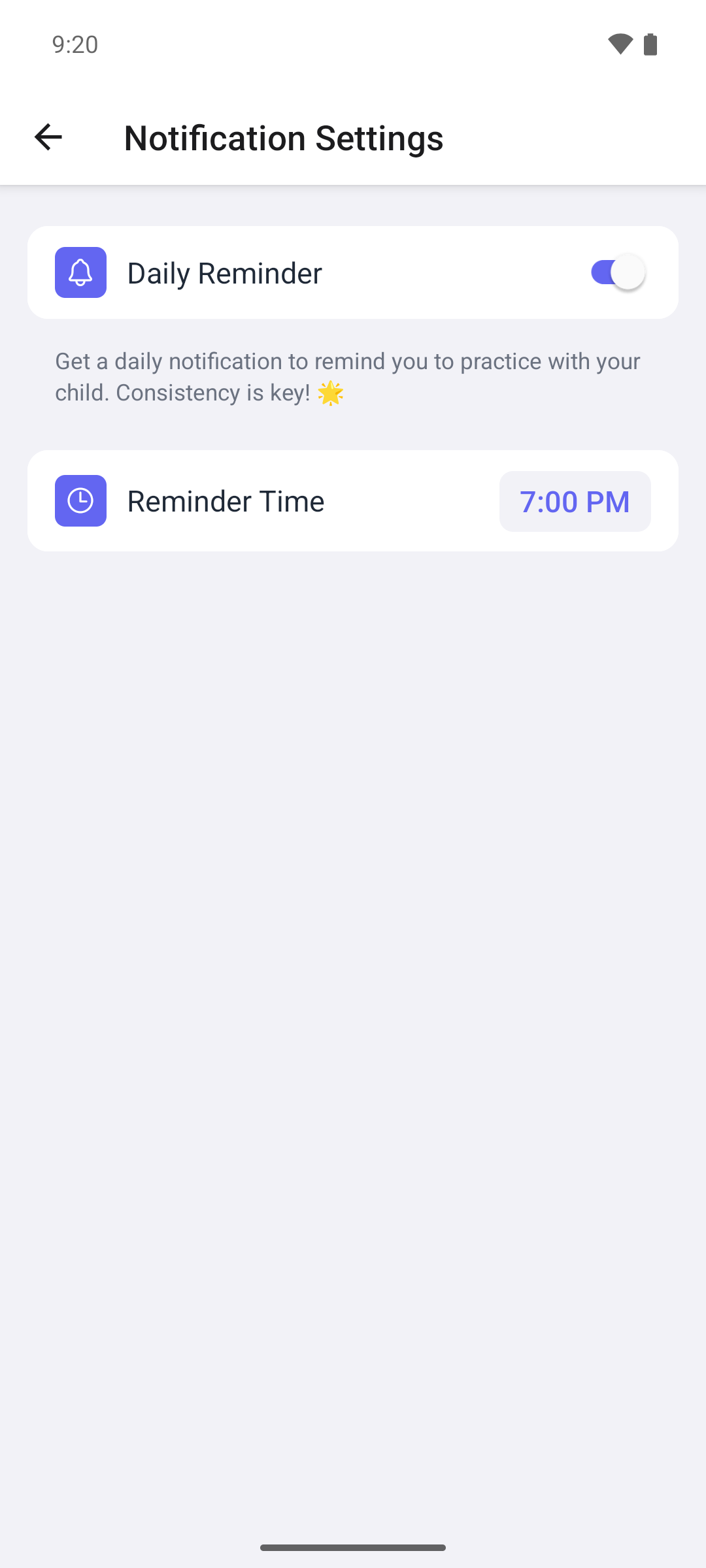
Notification Settings opens.
- Turn on the Daily Reminder switch. The first time, your phone asks whether ABACare may send notifications: allow it.
- Reminder Time appears, set to 7:00 in the evening. Tap it to choose another time. On an iPhone, confirm with OK. On Android, the time applies as soon as you choose it.
Every day at that time, your phone shows Time to Practice! 🎯 with a short message. Tap it to open the app. The screen shows no confirmation when you turn the reminder on or change the time.
Change or stop the reminder
- To change the time, tap Reminder Time again.
- To stop the reminder, turn the switch off. Your time is kept for when you turn it back on.
If notifications are blocked
If ABACare may not send notifications, the switch does not stay on and Notification permission was denied appears. The screen then shows Notifications disabled in system settings and Open Settings.
- Tap Open Settings and allow notifications for ABACare.
- Come back to the app and turn on Daily Reminder again.
If you block notifications for ABACare later, the app turns the reminder off the next time it starts or you open Notification Settings.
Good to know
- There is one reminder per phone. On another phone, set it up again.
- Signing out removes the reminder. Turn it on again after you sign in.
- The reminder's text is in the app's language at the time you turned it on. After you change the language, change the reminder time, or turn the reminder off and on again, to get the new language.
- If the reminder cannot be set, Failed to schedule reminder. Please try again. appears and the switch goes back.
What happens next
When the reminder comes, open the app and practice: see Log home practice for a target.