Breadcrumb: Aide › Data collection
Attach a photo or video to a target
Add a photo or a short video to a target as evidence of the learner's performance, and remove one you added by mistake.
A photo of the finished task or a short clip of the learner responding shows your BCBA what the numbers cannot. You attach photos and videos to one target in one session. They are not data and change no score. Your BCBA can comment on them, and you read that feedback later.
Before you start
- As an aide, you attach media while the session is In Progress. On the web you can also attach after you submit if your clinic lets aides correct submitted sessions.
- BCBAs and org owners attach media in the web app while the session is In Progress or Submitted.
- Each target holds up to 10 photos and videos per session. A video can be up to 5 minutes long and 200 MB.
- You need a connection. Nothing is saved to send later: a failed upload is lost unless you retry it.
Add a photo or video
Web
Open the session. On the Data card, each target that already has a run or a note shows a Media strip.
- Select Add media. Your computer's file picker opens.
- Pick a JPEG, PNG or WebP photo of up to 15 MB, or an MP4 video.
- A tile shows the upload. You can keep working while it runs.
The message Photo added. or Video added. appears and the tile joins the strip. A file of the wrong type or size is refused with a message, and nothing is uploaded. A target with no run and no note yet has no strip: record a run first.
Mobile
Open the session and tap Data Collection, then swipe to the target.
The Media strip sits under Target Notes on every target page.
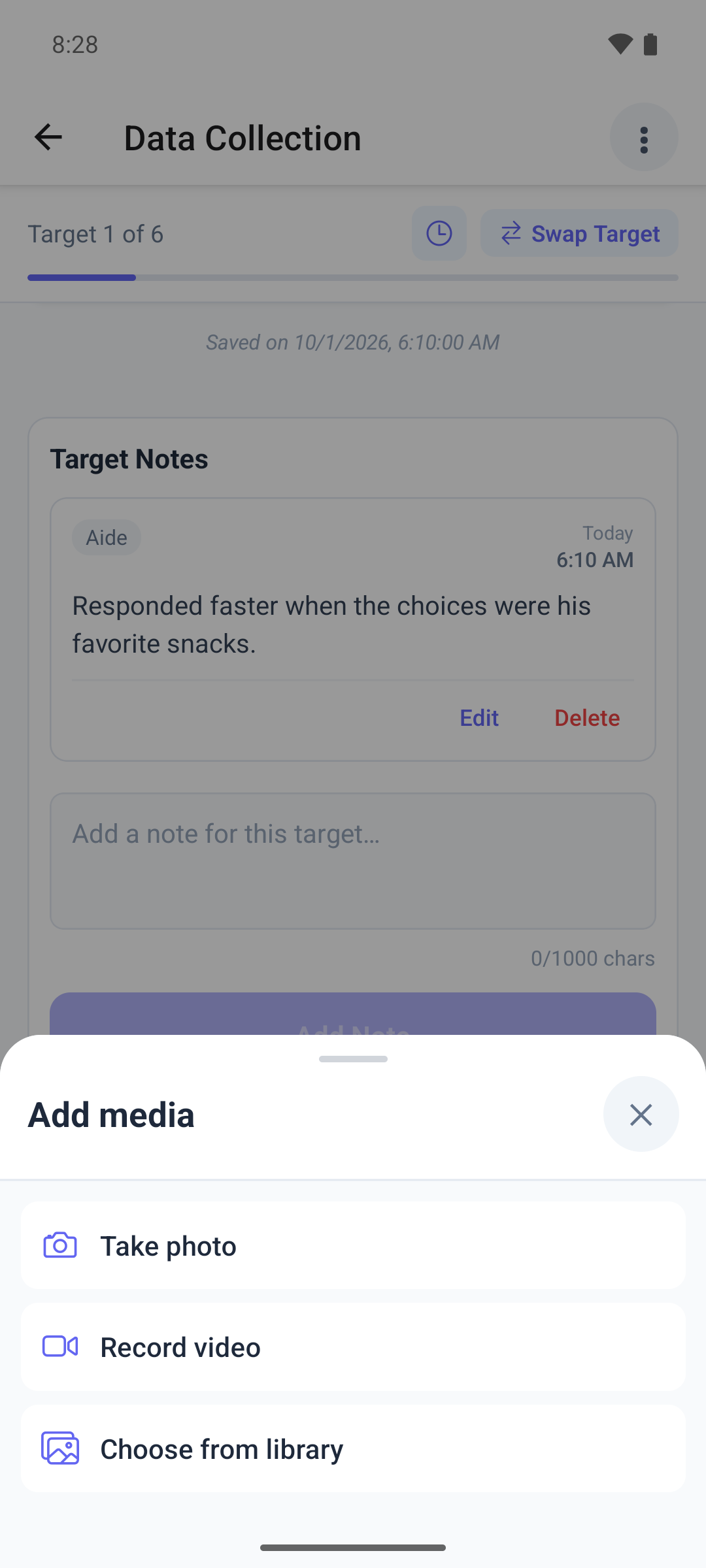
- Tap Add media.
- Choose Take photo, Record video or Choose from library. The first time, allow ABACare to use the camera or your photos.
- An amber tile shows the upload. Keep recording data while it runs; a video keeps uploading even if you swipe to another target.
- The tile turns green, then shows the photo or video.
If an upload fails, the tile turns red: tap it to try again.
Limits and messages
- Limit of 10 reached. The target already holds 10 photos and videos for this session. Add media is turned off.
- Photo too large — max 15 MB., Video too long — max 5:00. and Video too large — max 200 MB. name the limit you hit.
- You're offline — media needs a connection to upload. Connect and try again.
- The web app accepts MP4 videos only and cannot use your camera. The mobile app records and converts video for you.
View or remove a photo or video
Tap or select a tile to open the photo, or to play the video with its comments.
Web
Each tile shows a bin while you can still change the session.
- Select the bin on the tile.
- Confirm in Delete photo? or Delete video?.
The message Photo deleted. or Video deleted. appears. You can delete only media you added; for anyone else's, the app shows an error.
Mobile
Your own tiles show a small cross while the session is In Progress.
- Tap the cross on the tile.
- Confirm with Delete.
What happens next
- The photo or video is saved on the session straight away, under that target. Your BCBA sees it when reviewing the session.
- A photo shows the time it was uploaded, not the time it was taken.
- After you submit, the mobile app shows the media read-only. When you can no longer change the session, the web app shows a lock on the strip.