Breadcrumb: Aide › Data collection
Review feedback on session media
Find out when your BCBA has commented on the photos and videos you attached to a session, and read the comments.
When your BCBA reviews a session, they can comment on the photos and videos you attached to its targets: what went well, what to change. On a video, a comment can point to a moment in the clip. ABACare tells you when there is feedback, takes you to the commented media, and lets you read every comment. You cannot reply or edit comments.
Before you start
- You get feedback only on media you attached yourself.
- ABACare tells you about feedback once your BCBA completes the session. A comment added earlier is visible only if you open the photo or video yourself.
- You can read feedback on any of your sessions, whatever its status.
Find the feedback
Web
When there is new feedback, the bell at the top of the page shakes and its badge shows the number of unread notifications.
- Select the bell. The latest notifications open. Unread ones are bold with a blue dot.
- Select the row that reads, for example, New feedback on 1 item in Ethan's session.
- The session opens and scrolls to the commented photo or video, which is highlighted for a few seconds.
You can open a feedback row again later, even once it is read. Mark all as read clears every notification without opening anything.
Mobile
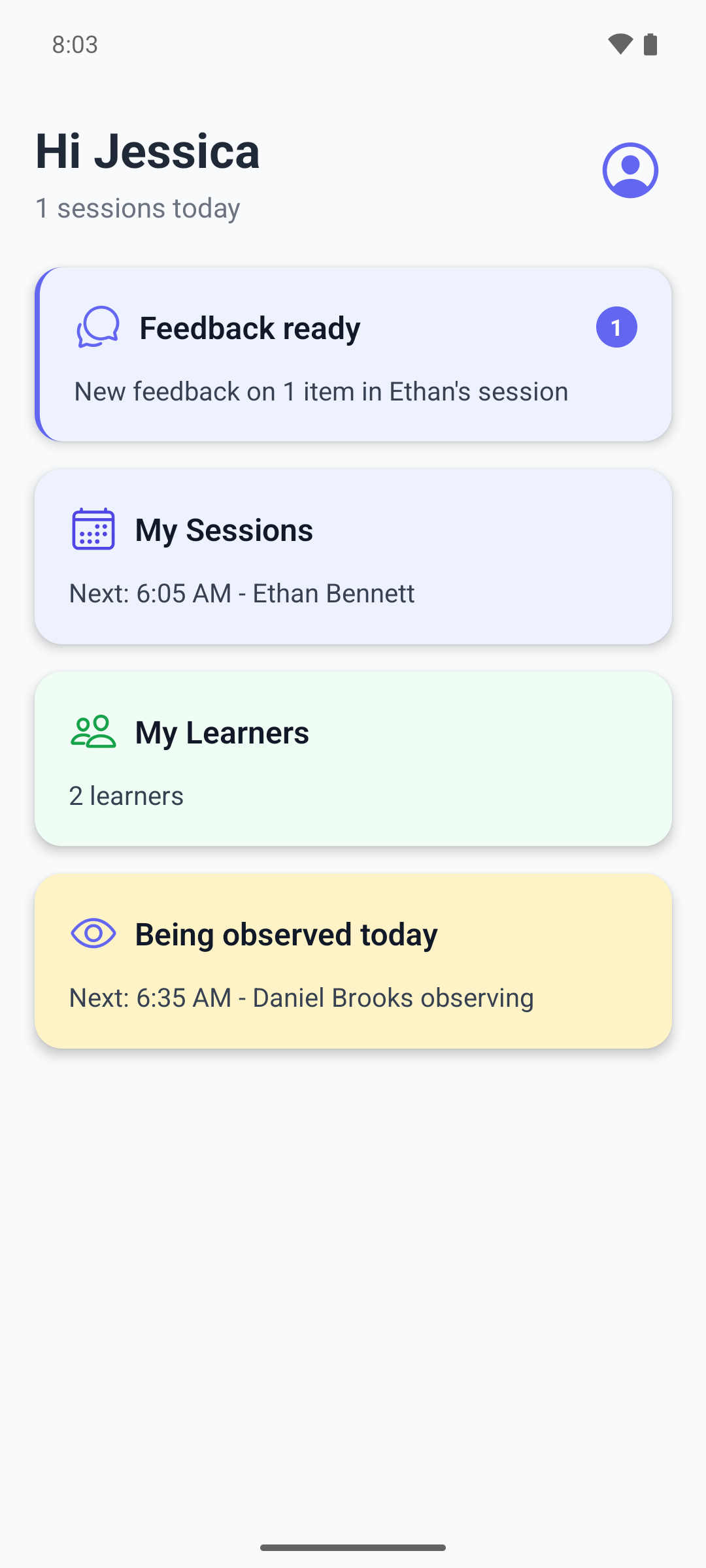
The home screen shows a Feedback ready card when there is feedback you have not opened.
The card shows how many notifications are unread and the newest one, for example New feedback on 1 item in Ethan's session.
- Tap the card.
- The session opens. The commented photos and videos pulse so you can find them.
- Go back to the home screen. If more feedback is waiting, the card now shows the next one. Tap it again until the card is gone.
Other photos and videos in the same session with feedback you have not read yet show an Unread feedback dot.
Read the comments
Web
Select a photo or video tile on the session page.
- A photo opens with its Comments below it, oldest first, each with the date and time.
- A video opens with the player, a bar with one marker for each comment tied to a moment, and the comments beside it. General comments come first, then the others in the order of the clip. Select a comment or a marker to jump to that moment. The comment matching the moment playing is marked as you watch.
Mobile
Tap a photo or video tile on the session.
- A photo opens with its comments below it, oldest first, each with the date and time. A photo with none shows No comments yet.
- A video opens in a sheet titled Comments, with the player on top. General comments come first, then the ones tied to a moment, each with its time in the clip. Tap one to jump to that moment.
Comments do not show who wrote them. A changed comment is marked edited.
What happens next
- Opening the commented media, or the session in either app, marks the feedback as read.
- If your BCBA comments again after the session is completed, you get a new notification only if you already read the earlier one.
- To attach more media in your next session, see Attach a photo or video to a target.