Breadcrumb: Aide › Data collection
Write a generic target note
Record a written observation for a generic target, which has no counts or trials, and edit it later.
Some targets have no numbers to record. Your BCBA sets them up as generic targets, and you describe what you saw in a short note instead, for example how the learner shared a toy with a peer. Each note is saved as that target's data for the session, with your name, and you can edit it afterwards.
Before you start
- The session must be In Progress and assigned to you, with the target selected. See Collect data during a session.
- A generic note is not a target note. Target notes are extra comments you can add to any target; see Add target notes during a session.
- BCBAs write generic notes the same way in the web app.
Write the note
Web
Open the session and select Collect Data, then Target. Tick the generic target and select Continue.
- Type your observation in the box under Session Notes. The counter shows how many characters you have used.
- Select Save Data. It stays disabled until you type something.
A message confirms the save and the note appears on the target in the Data card. Each time you pick the target again, you add another note.
Mobile
Swipe to the generic target on the Targets tab.
The page shows the target's Instructions and Description when your BCBA added them.
- Type your observation in the Session note box. It holds up to 1,000 characters.
- Tap Mark Complete. It stays disabled until you type something.
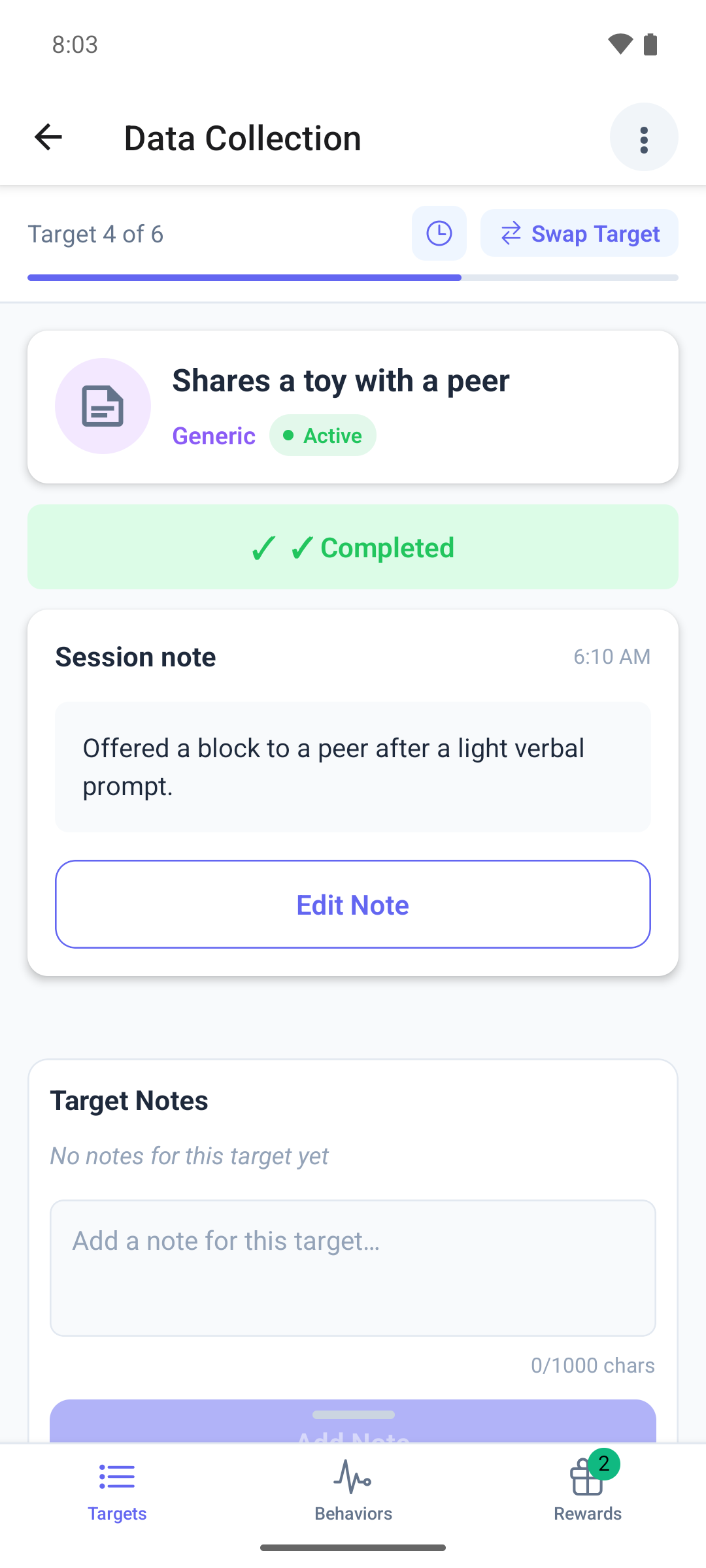
The page shows ✓ Completed, your note and the time.
Edit the note
Web
On the target in the Data card, select Edit, change the text and select Save Data. See Correct my data during a session for editing and deleting.
Mobile
Open the target's page in the session.
- Tap Edit Note.
- Change the text and tap Save Note, or Cancel to keep it as it was.
An edited note shows (edited).
Good to know
- A generic target is never required, so the session can be submitted without a note, and a note does not count towards the Session Complete message.
- In the mobile app each generic target takes one note per session. To add a second one, use the web app.
- In the web app, closing the window with the X or Esc throws away the note you typed without asking.
- In the mobile app, the text you typed is lost if you leave the page before you tap Mark Complete.
- If the target is in generalization or maintenance, you record a pass or fail for it instead of a note. See Record a generalization or maintenance pass or fail.
What happens next
- The note is saved as the target's data for this session, with your name. Your BCBA reads it when reviewing the session.
- You can edit it while the session is In Progress, and in the web app after you submit if your clinic lets aides correct submitted sessions.