Breadcrumb: Aide › Data collection
Record a generalization or maintenance pass or fail
In a clinic that uses Simple collection, record with one tap whether the learner showed a skill in a new setting or still has a mastered one.
Once a learner masters a target in the clinic, your BCBA moves it to generalization (showing the skill in new settings, with new people or new materials) and later to maintenance (checking that the skill stays). Your clinic chooses how you record those checks. This guide covers the Simple mode: one pass or fail per check, with no trials or timers. For a generalization target you mark each setting, called a context, as Demonstrated or Not Demonstrated. For a maintenance target you record whether the learner Still Has It.
Before you start
- This applies when your clinic's generalization and maintenance collection is set to Simple. If it is set to Granular, you run the full collector instead: see Collect a granular generalization run and Collect a granular maintenance probe.
- A session keeps the mode it had when it started, so a change of setting affects only sessions started afterwards.
- Generic targets in generalization or maintenance always use the pass or fail, whatever the mode.
- BCBAs record the same pass or fail in the web app.
Record a generalization pass or fail
Web
Open the session and select Collect Data, then Target. Tick the generalization target and select Continue.
- The window lists each context of the target under Select a result for each context.
- For each context you tested, select Demonstrated or Not Demonstrated. You can switch a choice, but not clear it.
- Select Save Data. It is enabled once at least one context has a result.
ABACare saves one result per context you marked, the result appears on the Data card and the next target you picked opens.
Mobile
Swipe to the generalization target on the Targets tab.
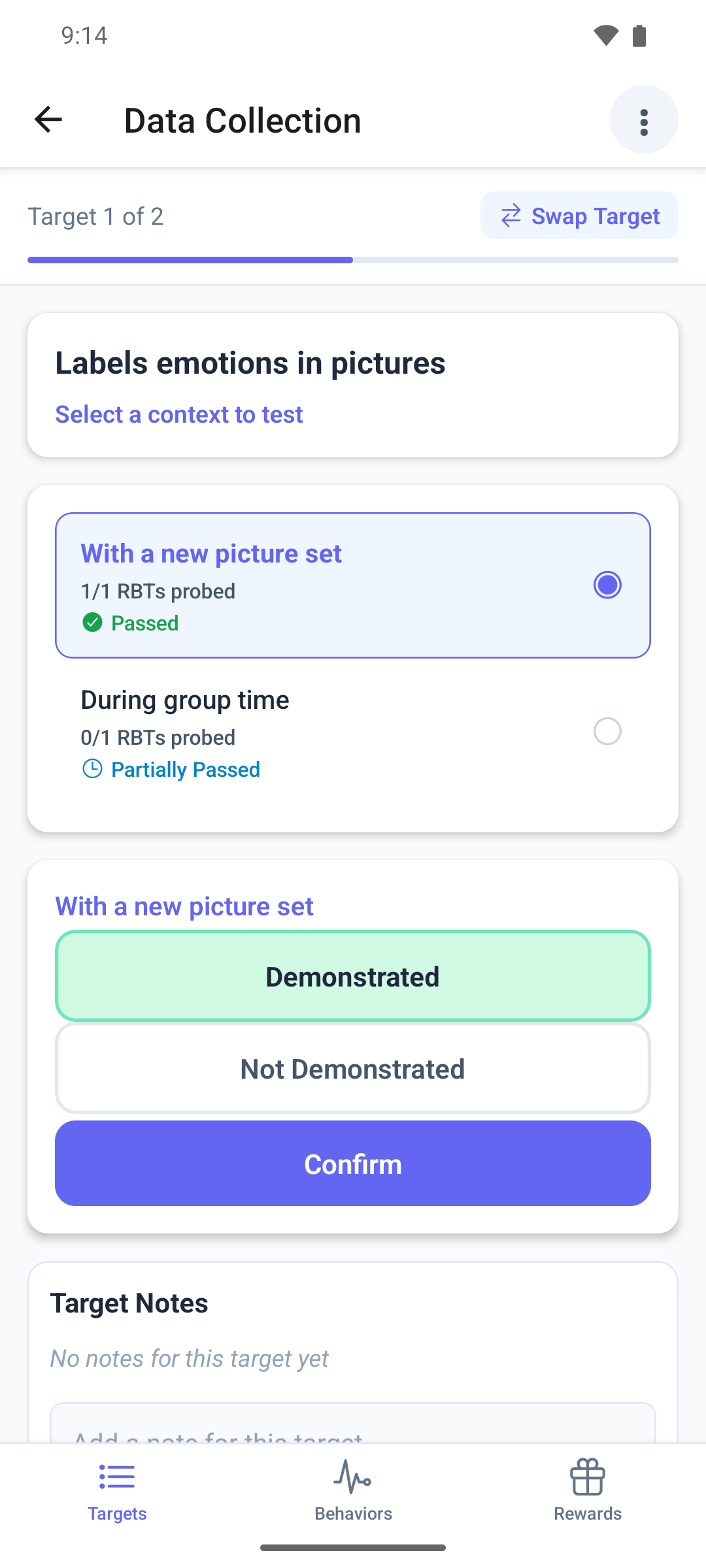
The page shows Select a context to test and a list of contexts. Each context shows how many aides have passed it, for example 1/2 RBTs probed, You haven't probed this yet if you have not, and a Passed or Partially Passed badge.
- Tap the context you tested.
- Tap Demonstrated or Not Demonstrated. Choosing another context clears the result.
- Tap Confirm.
The page shows Completed, the context and the result. To test another context, tap + on it for a new run.
Record a maintenance pass or fail
Web
Tick the maintenance target in the target list the same way.
- Under Maintenance Probe, select Still Has It or Doesn't Have It.
- Select Save Data.
The web list shows every maintenance target that has a check schedule, even when its next check is not due yet. A check you record early still counts.
Mobile
Swipe to the maintenance target.
- The page shows Maintenance Probe and when it was last checked, or Never probed.
- Tap Still Has It or Doesn't Have It, then Confirm.
The mobile app offers a maintenance target when you start the session only when its check is due.
Good to know
- A generalization context counts as passed once enough aides have passed it. Your BCBA sets how many.
- Each maintenance result sets the date of the next check. If your BCBA spread the checks out over time, a pass moves on to the next, longer gap and a fail starts again from the first one.
- If you save the wrong result, switch it in the web app: select Edit Data on the target, pick the other result in Edit Binary Result and select Save. You can also delete it. See Correct my data during a session. Deleting a maintenance result does not undo its effect on the next check date, so tell your BCBA.
- Context badges and counts can take a moment to update. Reopen the session to see the latest.
What happens next
- Each result is saved as a run on the session. When the session is completed, ABACare checks whether the target is ready for its next phase.
- When every target you must run has data, the mobile app offers to submit the session.