Breadcrumb: Aide › Learners
Browse my learners and their plans
See the learners assigned to you, read their treatment plan goals and targets, and look back at their session history.
Before and between sessions, you can look up the learners you work with: their details, the goals and targets in their treatment plan, and the sessions they have had. This helps you know what to run next time. Everything here is read-only. Your BCBA makes the changes to the plan.
Before you start
You see only the active learners assigned to you. If a learner is missing, ask your BCBA or org owner to assign you.
Find a learner
Web
Select Learners in the top menu, or a learner on the My Learners card of your dashboard.
- Search by name if the list is long.
- Select the eye icon (View Details) on a row to open the learner.
- The learner's page has the tabs Basic Info, Diagnostics, Treatment Plans and Sessions.
Mobile
Tap the My Learners card on the home screen.
My Learners lists your learners. Pull down to refresh.
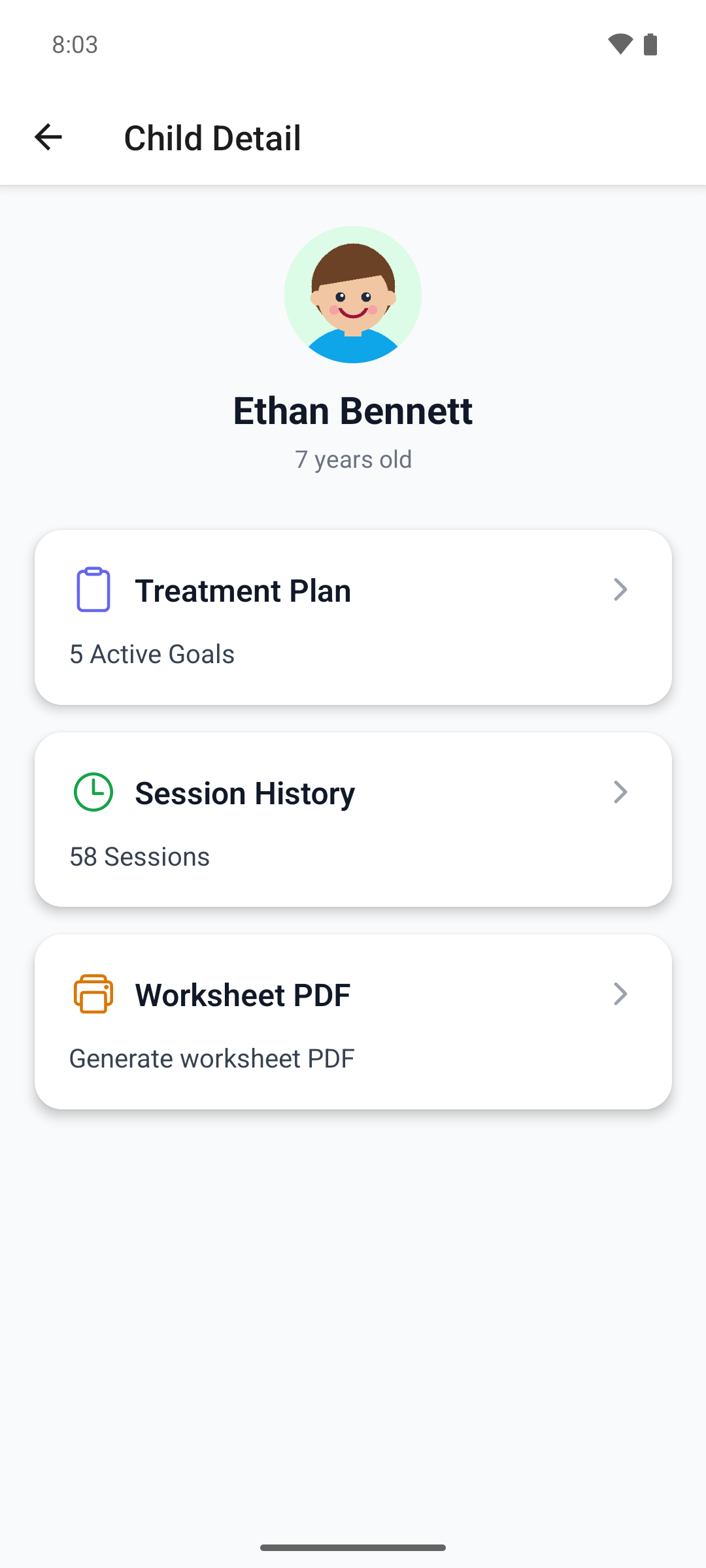
- Tap a learner. Their name and age show at the top.
- The Treatment Plan card shows the number of goals in the active plan.
- The Session History card shows how many sessions the learner has had.
- The Worksheet PDF card prints a worksheet for the active plan.
Read the treatment plan
Web
On the learner's page, select Go to Active Plan. The Treatment Plans tab lists every plan, active or not, with a view button.
- The plan opens on Overview, with the learner's progress.
- Open Goals to see the goals and their targets, as cards or as a table.
- Select a goal or target to read its full setup.
Mobile
On the learner, tap the Treatment Plan card. The mobile app opens only the active plan.
Goals are grouped as Active, Planned, On Hold and Mastered, each with its status, description and number of targets.
- Tap a goal to see its targets.
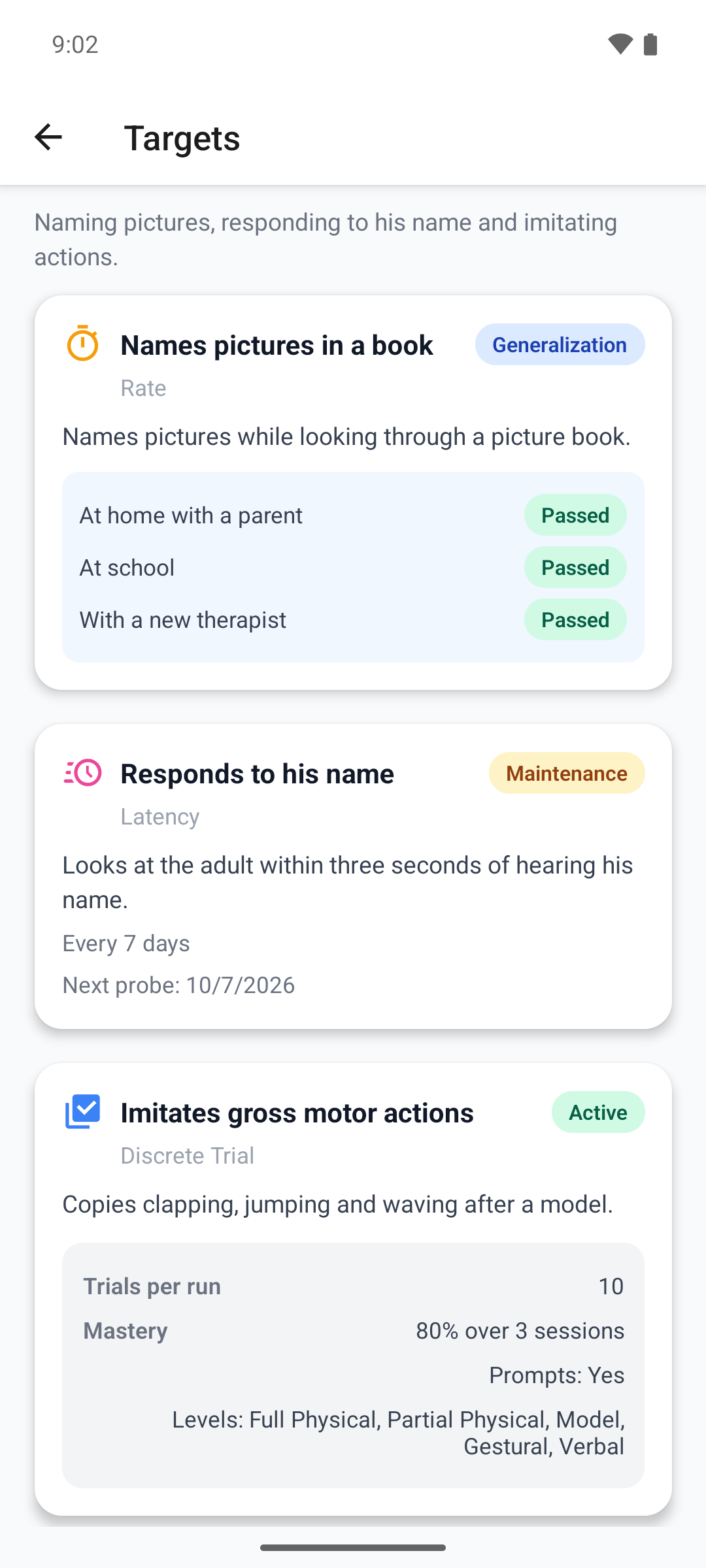
- Each target shows its type, status and description. Criteria Met marks an active target that has met its mastery criteria.
- A generalization target lists its settings as Passed, Partially passed or Not passed. A maintenance target shows its check schedule and Probe due or the next check date.
If your clinic lets you add or activate targets, the web plan shows those actions on an active plan.
See the session history
Web
Open the learner's Sessions tab.
- Filter by status or by aide.
- Select a row to open the session.
Mobile
On the learner, tap the Session History card.
- Switch between All Providers and My Sessions.
- Scroll to load more, and tap a session to open it.
The history shows every aide's sessions with the learner, not only yours.
What happens next
- If you lose access to a learner, their page shows Learner not found on the web, and looks empty in the mobile app. The mobile app also shows empty screens when it is offline or a page fails to load, so check your connection first.
- The number of goals on the mobile Treatment Plan card counts every goal in the plan, not only the active ones.