Breadcrumb: Aide › Data collection
Record DTT trials
Score each discrete trial of a DTT target as correct, incorrect or prompted, review the run and save it.
A DTT (discrete trial) target is practiced in short trials. For each trial you record whether the learner answered correctly, incorrectly, or needed a prompt, and at which prompt level. The trials you save together form one run, and ABACare works out the percentage correct from them. Your BCBA sets how many trials a run has and whether prompts are allowed.
Before you start
- The session must be In Progress and the target in the Active phase. For a target in generalization or maintenance, see Collect data during a session.
- BCBAs record DTT trials in the web app only.
Record the trials
Web
Select Collect Data, then Target, tick the DTT target and select Continue.
- At the top, check Trials Required, Mastery Criteria, Prompts Allowed and Progress. When your BCBA set the target to count different days, the criteria read in days, for example 80% for 3 days.
- After each trial, select Correct or Incorrect. When prompts are allowed, Prompt Level shows one button per level: select the level you used.
- To remove a mistake, select Undo Last Trial. It is available until the run is complete.
- The Trial History table lists every trial. To change one, select its pencil, pick the new response in Edit Trial and select Save Changes.
- When all trials are recorded, All Trials Complete! appears. You can also save a shorter run at any time.
- Select Save Data.
Mobile
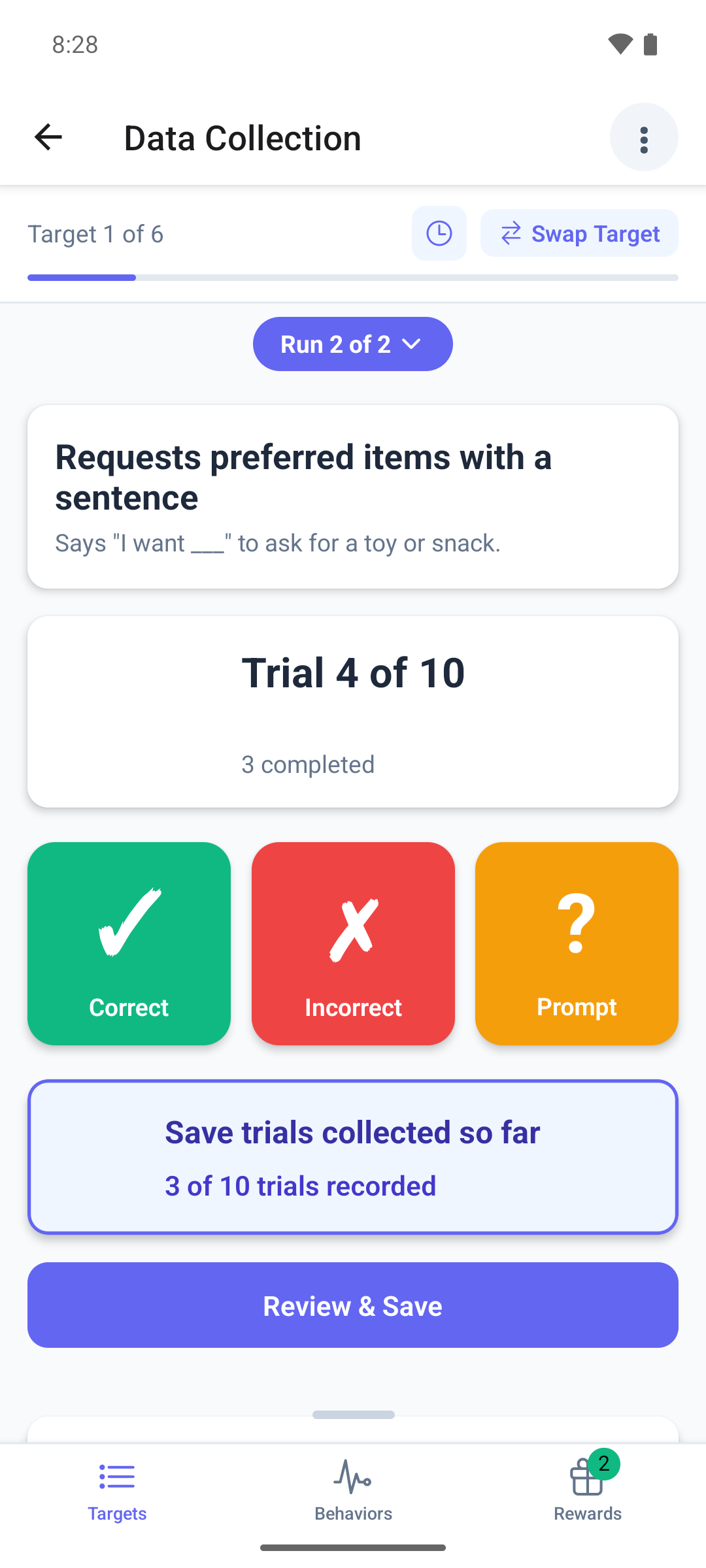
Swipe to the DTT target. If it already has a run, tap the + icon on its summary to start a new one.
The page shows Trial 1 of 10 and a progress bar.
- After each trial, tap Correct or Incorrect. When prompts are allowed, tap Prompt and choose the level in Select Prompt Level.
- Under Trial History, tap a trial to change it to correct or incorrect, or tap its bin and confirm with Delete to remove it.
- Tap Review & Save. It appears after the first trial, so you can save a shorter run.
- Review & Confirm shows the totals and each trial. Tap Go Back to keep recording, or Confirm & Save.
The page switches to the summary of the saved run.
Good to know
- A prompted trial counts in the total but not as correct.
- In the mobile app, once every trial is recorded you can no longer change a trial, only delete it. Deleting renumbers the rest and brings back the response buttons.
- In the web app, Undo Last Trial disappears once the run is complete. Use the pencil instead.
- If a save fails, the trials stay where they are so you can try again.
- In the mobile app, unsaved trials survive swiping to another target. When you submit, the app offers Save & Submit to save them first. Leaving the screen asks you to confirm with Leave and throws them away.
What happens next
- The run appears with its percentage correct: in the target's summary on the phone and on the session's Data card on the web.
- To run the target again in the same session, add another run: see Collect data during a session.
- Your runs count toward the target's progress and mastery once your BCBA completes the session.